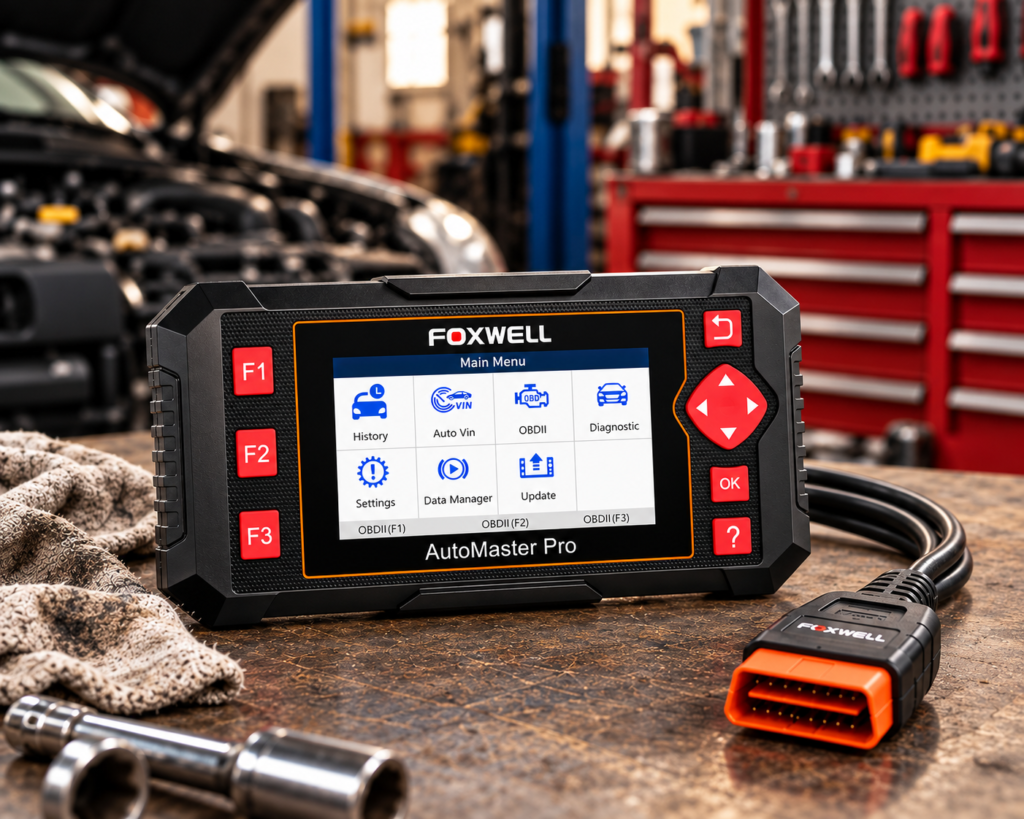
The Foxwell NT604 Elite is a handheld code reader with a 4.3 inch color screen. It reads and clears codes in four systems: engine, ABS, SRS (airbag) and transmission. It shows live data, finds the VIN for you, and updates over Wi-Fi.
The short version: The NT604 Elite is a good first step up from a basic code reader. It looks at four systems, not only the engine, so an ABS or airbag light is no longer a mystery. Amazon and Foxwell agree on the main points. The tool does not reset service lights, and Amazon says so in its own bullets. If you only need engine codes, a simpler reader will do. If you want ABS and airbag codes without a phone, this one fits.
Affiliate Disclosure: As an Amazon Associate I earn from qualifying purchases. Scan Choice Guide is a participant in the Amazon Services LLC Associates Program, an affiliate advertising program designed to provide a means for sites to earn advertising fees by advertising and linking to Amazon.com.
What the NT604 Elite Actually Does
The tool is one unit. The screen, the keys and the diagnostic cable are all in your hand. You plug the cable into the OBD2 port under the dash, and the car powers the tool. You do not need a phone, an app or a computer for a normal scan.
Foxwell and Amazon list these functions:
- Four systems. Engine, ABS, SRS and transmission. Amazon puts it as “ABS, SRS, engine, and transmission”.
- Read and clear codes. You see the code number and a short description. Foxwell’s manual says the tool also shows pending codes and history codes where the car supports them.
- Freeze frame. A snapshot of what the sensors saw when the fault was stored.
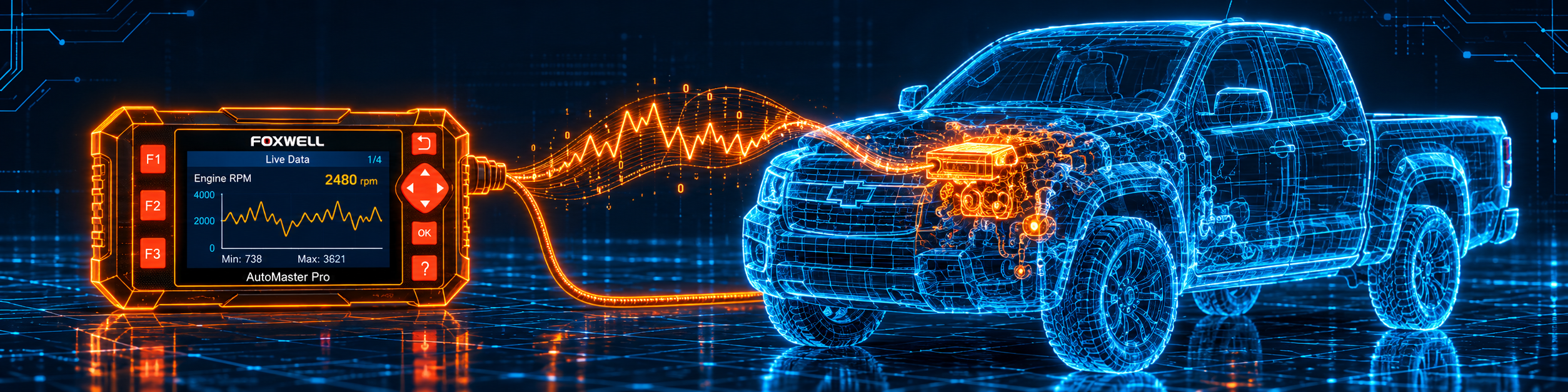
- Live data. You can view all values or pick a few, pause them, save a recording and draw graphs.
- Auto VIN. The tool reads the VIN from the car. Amazon lists this as “AUTOVIN” and says there is no extra software fee.
- I/M readiness. A view of the emission monitors, useful before an inspection.
- DTC lookup. You type a code and the tool shows its definition from its own library.
- Wi-Fi updates. Foxwell lists a lifetime free Wi-Fi update. Amazon lists “Lifetime update”.
Foxwell’s page says the tool covers 1996 and newer US cars and 2000 and newer European cars, plus Asian cars, light trucks and SUVs, and it lists more than 50 brands. It supports the standard OBD2 protocols (KWP2000, J1850 VPW, ISO9141, J1850 PWM and CAN).
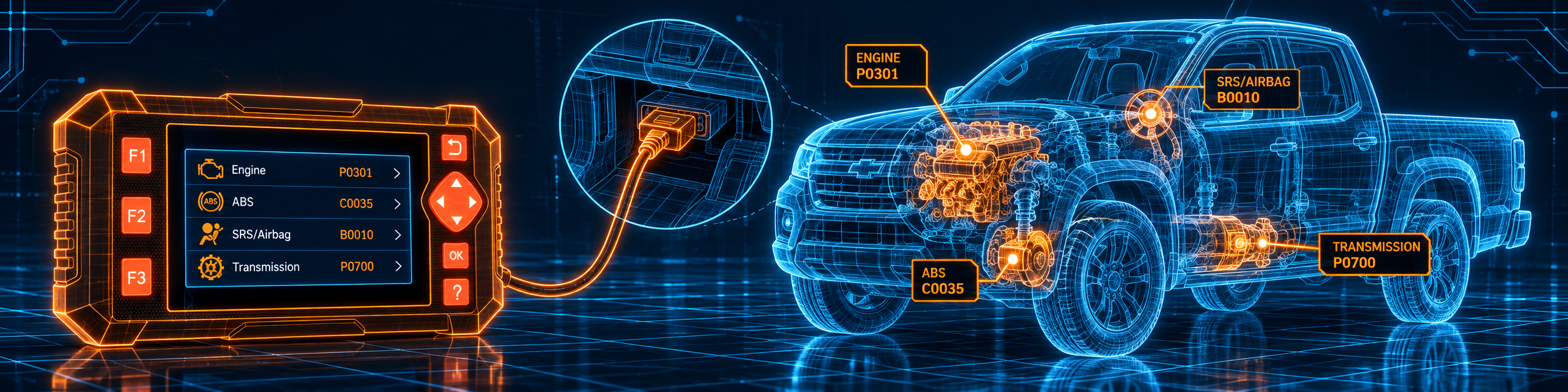
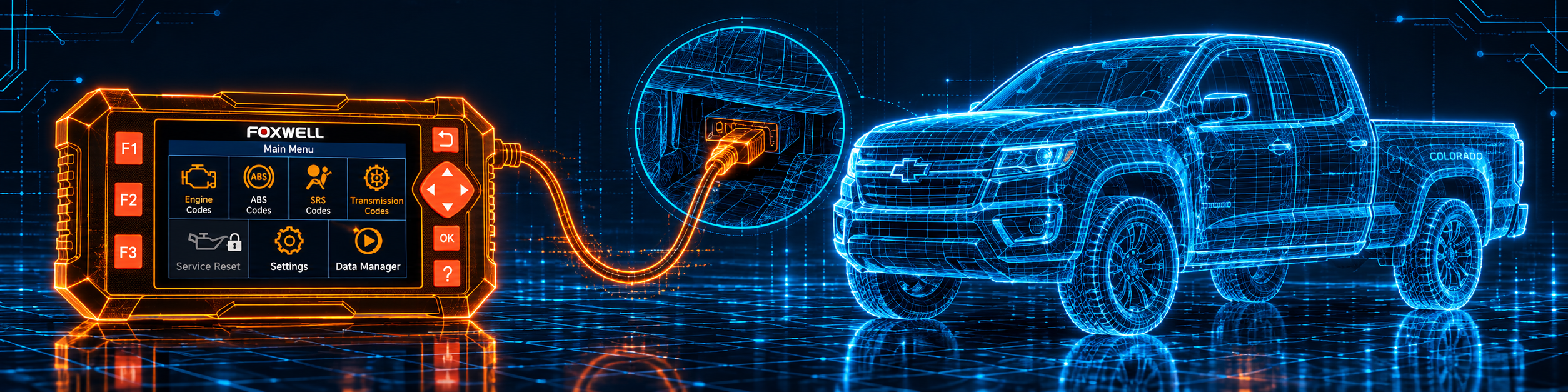
The picture below shows the main job. The tool is on a pickup, and it is reading codes from the engine, ABS, airbag and transmission systems one after another.
What Amazon Says vs. What Foxwell Confirms
We compared the Amazon listing with Foxwell’s product page, its NT6X4 series page and its user manual. The sources agree on the main points. A few details need care.
| Claim | Amazon listing | Foxwell | Our reading |
|---|---|---|---|
| Systems | “ABS, SRS, engine, and transmission” | Engine, transmission, ABS and SRS | Agree |
| Service resets | Does not support “oil reset, battery registration, ABS bleeding, throttle body relearn, or ABS relearn” | No service functions listed in the manual | Agree |
| Live data | Yes, in the title | Live data stream with graphs and recording, per the manual | Agree |
| Auto VIN | Yes, “no extra software fee” | Yes, automatic reading with manual input | Agree |
| Updates | “Lifetime update” | “Lifetime free WiFi update” | Agree |
| Connection | “Corded Electric” | OBD2 cable | Agree |
| Screen | 4.3 inches | 4.3 inch TFT color display | Agree |
| Commands to parts | Not listed | A Component Test item appears in the OBDII menu, per the manual | Manual only |
| Brands | “60+ car brands” | More than 50 brands and 13 languages, per Foxwell’s page | The figures differ |
| Warranty | Not listed | One year, with lifetime technical support, per Foxwell’s page | Foxwell only |
| Size | 7.68 x 3.54 x 1.18 in | 200 x 110 x 30 mm, per the manual | The sources differ |
| Operating system | Linux | Not listed in the manual | Amazon only |
The service point matters. Amazon’s sixth bullet says the tool does not support service functions such as oil reset, battery registration, ABS bleeding, throttle body relearn or ABS relearn. The third bullet adds that it does not support maintenance functions like reset or relearn. Foxwell’s manual lists none of them. Both sources agree, so this tool is a reader and not a service tool.
The airbag point matters. Amazon says the tool can read and clear common SRS fault codes that were not caused by a crash. It says crash or collision data cannot be cleared. Do not expect it to clear the airbag light after a crash.
The Component Test point matters. Foxwell’s manual lists a Component Test in the OBDII menu, and it lists Service $08, which it describes as a request to control an on-board system, test or component. The manual also says menu options vary by vehicle and that the tool shows “Not supported the mode!” when an option does not apply. Amazon does not list commands to parts, and we do not count it as a feature.
The update point matters. Older Foxwell tools updated through a computer and an SD card. This version updates over Wi-Fi. The manual says to enter Update, join a Wi-Fi network and download. You do not need a computer for this.
Size differs. The Amazon size reads like the box. The manual gives 200 by 110 by 30 millimeters for the tool.
A third source. The California Air Resources Board, a state environmental agency, publishes an OBD II fact sheet dated September 19, 2019. It says all 1996 and newer model year gasoline and alternate fuel passenger cars and trucks are required to have OBD II systems. It says the system lights a warning light on the dashboard when it detects a problem. It explains “readiness indicators”, which show whether the car is ready for an inspection. It says they can be incomplete after a fault was repaired or after a dead, disconnected or replaced battery, and that normal driving for about a week sets them to complete. This source is independent of both Amazon and Foxwell. It supports the 1996 starting year that Foxwell and Amazon both use.
How we handle these differences. The feature table at the bottom of this page, the Scanner Finder and our comparisons follow the Amazon listing, because Amazon is where you buy. We name the points above so you can see where Foxwell says more than Amazon. If one of them matters to you, read this section before you decide.
Is the NT604 Elite Enough for You?
A short table gives the first answer.
| If your work is | Does the NT604 Elite list it? |
|---|---|
| Reading and clearing engine codes | Yes |
| Reading and clearing ABS codes | Yes |
| Reading and clearing airbag (SRS) codes | Yes |
| Reading and clearing transmission codes | Yes |
| Live data and graphs | Yes |
| Freeze frame and I/M readiness | Yes |
| Oil reset, battery registration, ABS bleeding, throttle body relearn, ABS relearn | No, per Amazon |
| Commands to parts and active tests | Not listed on Amazon |
| ECU coding | Not listed on Amazon or on Foxwell’s product page |
| Body, climate and other modules | Not listed on Foxwell’s product page |
For a driver who wants to know why the ABS, airbag or transmission light is on, the top half covers the job. The bottom half names the work that needs a bigger tool.
Will the NT604 Elite Work on Your Car?
Foxwell says 1996 and newer US cars and 2000 and newer European cars, plus Asian cars, light trucks and SUVs. The California fact sheet says all 1996 and newer gasoline and alternate fuel passenger cars and trucks are required to have OBD II systems. The engine part of the tool therefore works on a very wide range of cars.
The extra systems depend on the brand. ABS, SRS and transmission codes use the maker’s own messages, so coverage differs by brand, model and year. Foxwell lists more than 50 brands and Amazon says 60 or more. Use the Scanner Finder to see how your car looks.
Two more points:
- Diesel cars. Foxwell’s page names OBD2 and CAN vehicles. It does not list diesel as a separate group.
- Hybrids and electric cars. The page does not list the hybrid battery system. Treat the tool as an engine, ABS, SRS and transmission reader on these cars.
How to Set Up and Use the NT604 Elite
This section follows Foxwell’s user manual (version 1.01), the Wi-Fi quick start guide and the menu names used on the tool.
Step 1: Look at what you have
The tool has a 4.3 inch screen, three function keys, direction keys, an OK key, a BACK key and a HELP key. There is a diagnostic port for the cable and a USB port. The manual says the USB port gives power from a computer. Foxwell sells the tool with a carrying case.
Step 2: Connect to the car
- Find the OBD2 port. The manual says it is usually under the dash on the driver side.
- Attach the diagnostic cable to the tool and tighten the screws on the cable.
- Plug the cable into the port. Use the right adapter if the car needs one.
- Turn the ignition key to ON. The tool starts by itself.
The manual says not to connect or disconnect the tool while the ignition is on or the engine is running. It also says to never power the tool from USB while it talks to a car. The tool runs on 8 to 18 volts from the car. The Wi-Fi guide says the battery should be between 10 and 14 volts, the ignition on and the engine off before you start.
Step 3: Update the tool first
Update before your first scan. Amazon says the tool comes with the latest software and tells you to open the Update menu to check the APP and BooT version, and to update if the version number shows in red. The manual lists what you need: the tool, a Wi-Fi network and power from USB or the diagnostic cable. The steps are these:
- Open Update from the home screen and pick your Wi-Fi network.
- Tick the software you want, or use Select All, and press Update to download.
- When all items are done, the tool shows “All software downloads are successfully installed!”.
The Wi-Fi guide says to create a Foxwell ID before updating. It describes the steps: scan the QR code on the screen, enter your email, ask for a code, set a password and finish the free registration. After you log in, press Submit to register the product. The serial number fills in on its own, or you can type it in. Find the serial number on the back of the tool or in Settings, then About.
Step 4: Identify the car
The home screen lists Auto VIN, OBDII/EOBD, Diagnostic, Settings, Data Manager and Update. For the four-system tests, pick one of these two paths.
- Auto VIN. Choose Automatic VIN Acquisition. The tool reads the VIN from the car. Answer YES if the vehicle shown is right. If the read takes too long, press Cancel and use Manually input VIN with the on-screen keyboard. A VIN has 17 characters.
- Diagnostic. Pick the area where the brand comes from, then the brand. Choose SmartVIN for an automatic read, or make manual picks such as model year and engine type.
Step 5: Pick the control modules
The tool offers two ways to find the systems.
- Quick Scan checks which control modules the car has and gives an overview of the codes. The manual says it may take 10 minutes or longer, depending on how many modules the car has. You can pause it. At the end you see the list of modules with their code counts. Press Report to see the details, or Erase to clear them. Press F1 to save the code information.
- Control Modules lists the modules the tool knows. The manual says that the list does not mean the car has all of them. Pick the one you want to test.
Step 6: Use the function menu
After you pick a module, the Function Menu opens. Its options may include ECU Information, Read Codes, Clear Codes and Live Data. The manual says options depend on the year, model and make.
- ECU Information shows identification data for the control module, such as its identification string and coding. Press Save to store it.
- Read Codes lists the codes with a description. Codes can be present, pending or history. Pending codes are faults that have not happened often enough to light the warning lamp. History codes are past faults that are not active now. Press Freeze Frame to see the snapshot, and Save to store it.
- Clear Codes erases the codes and the temporary ECU data, including freeze frame. The manual says to turn the ignition on with the engine off. It warns that clearing does not fix the cause. Check the codes again afterwards.
- Live Data has a Complete List and a Custom List. Press Pause to hold the values and Start to go on. Use SAVE to record and Stop Saving to end the recording. Press Graph where the line allows it, and Merge Graph to draw two values in one picture and see how they affect each other.
Step 7: Use the OBDII/EOBD menu
This menu is for the generic emission tests. The tool finds the protocol by itself. The manual lists the options: System Status, Read Codes, Freeze Frame Data, Clear Codes, Live Data, I/M Readiness, O2 Sensor Test, On-board Monitor Test, Component Test, Vehicle Information, Modules Present and Code Lookup.
- I/M Readiness shows each monitor as OK, INC (incomplete) or N/A (not applicable). There are two views: since the codes were cleared, and this drive cycle. Turn the ignition on with the engine off first.
- DTC Query (Code Lookup) shows the definition of a code you type in. If the tool does not find a definition, it says “DTC definition not found! Please refer to vehicle service manual!”. For P1xxx, C1xxx, B1xxx and U1xxx codes, you pick the car make first.
Step 8: Keep your records
The Save keys store code lists, freeze frame data and live data recordings. Data Manager on the home screen gives access to them. The manual says you can also print stored information from a computer.
Step 9: Change the settings
Under Settings you can change the language, the units, the shortcut keys, the beep, and you can run a display test and a keypad test. About shows the serial number. The manual says the tool is set to English by default. Foxwell’s page lists 13 languages. The Uninstall Vehicle Software option removes vehicle software you no longer need.
Step 10: Handle common problems
- A scan takes very long. Quick Scan can take 10 minutes or longer. Pause it, or pick one module from Control Modules instead.
- The tool does not find the VIN. Press Cancel and type it in.
- A menu item is missing. The manual says options depend on the car. A message “Not supported the mode!” means the car does not support that test.
- The tool does not start. Check that the cable screws are tight and the ignition is on. The manual says the tool normally powers on when it is connected to the port.
- The update fails. Check that Wi-Fi works and that you are signed in with your Foxwell ID.
Common Mistakes and Three Simple Plans
1. Clearing a code before you read it. Read the code, save it and look at freeze frame first. Then clear.
2. Clearing codes and going straight to an inspection. The California fact sheet says monitors can be incomplete after codes were cleared or after a battery was disconnected. Drive normally for about a week, as the fact sheet says, and check I/M Readiness.
3. Expecting an oil light reset. The tool does not list it. Amazon says so too.
4. Replacing a part from a code alone. A code points to a system, not to a failed part. Read Can an OBD2 Scanner Tell You Exactly What’s Wrong? before you buy a part for one code.
Plan A: An ABS light is on
- Connect the tool and turn the ignition on.
- Run Quick Scan, or pick ABS from Control Modules.
- Read the codes and press Freeze Frame where it is offered.
- Save the list. Then look up the code with DTC Query if you want more detail.
Plan B: An airbag light is on
- Pick the SRS module and read the codes.
- Save them.
- Do not clear an airbag code until the cause is fixed. The manual says clearing does not fix the problem that set the code.
Plan C: Getting ready for an inspection
- Open OBDII/EOBD and choose I/M Readiness.
- Look for INC next to any monitor.
- If a monitor is incomplete, drive normally and check again.
Where the NT604 Elite Sits Against the Alternatives
| NT604 Elite | ANCEL AD310 | BlueDriver | Foxwell NT809BT | |
|---|---|---|---|---|
| Reads engine codes | Yes | Yes | Yes | Yes |
| Reads ABS and airbag codes | Yes | Not listed in our AD310 review | Yes, on a list of brands | Yes |
| Needs a phone | No | No | Yes | No |
| Service resets | No | No | A few, such as oil light | Yes, 30 or more per our NT809BT review |
| Bidirectional control | Not listed on Amazon | Not listed in our AD310 review | Not listed on BlueDriver’s pages | Yes |
Our ANCEL AD310 review covers a simple engine code reader. Our BlueDriver review covers a phone-based sensor with repair reports. Our Foxwell NT809BT review covers the larger Foxwell tool with resets and active tests.
The NT604 Elite sits in the middle. It gives you ABS, airbag and transmission codes on its own screen, with no phone. Live data is the part you will use after the first code read. With a car that runs rough or hesitates, you can pick two values and use Merge Graph to see them together, such as a sensor and a fuel value.
Who This Scanner Actually Fits
The NT604 Elite fits a driver or home mechanic who wants to know why the ABS, airbag, transmission or check engine light is on, and who wants to see it on a screen without a phone. It also fits a small shop that wants a cheap second reader for quick checks. People who like to save a code list and look at live data before they call a shop will find the Quick Scan and the recordings useful.
Important Limitations of the Foxwell NT604 Elite
- No service resets. Amazon says no oil reset, battery registration, ABS bleeding, throttle body relearn or ABS relearn, and Foxwell’s manual lists none of them.
- No active tests are listed on Amazon. The manual lists a Component Test in the OBDII menu. It depends on the car, and we do not count it as a feature.
- Four systems only. Body, climate, steering and other modules are not on Foxwell’s list.
- Coverage depends on the brand. Engine reading is wide. ABS, SRS and transmission coverage depends on the make, model and year.
- Updates need Wi-Fi. The new version updates over Wi-Fi and a Foxwell ID.
- The screen is small. A 4.3 inch screen shows fewer lines of live data than a tablet.
Who Should Choose It, and What to Consider Instead
Choose the NT604 Elite if you want ABS, airbag, transmission and engine codes with live data on a handheld screen.
Consider the Foxwell NT809BT instead if you need service resets and active tests. Consider the ANCEL AD310 instead if you only need engine codes.
| Specification | Details |
|---|---|
| Screen | 4.3 inch TFT color |
| Connection to the car | Diagnostic cable to the OBD2 port. Wi-Fi is used only for updates |
| Power | 8 to 18 volts from the car, or USB from a computer |
| Systems | Engine, ABS, SRS, transmission |
| Live data | Yes, with graphs and recording |
| Auto VIN | Yes |
| Service resets | No |
| Updates | Lifetime free Wi-Fi update, per Amazon and Foxwell |
| Protocols | KWP2000, J1850 VPW, ISO9141, J1850 PWM, CAN |
| Coverage | 1996 and newer US cars, 2000 and newer European cars, per Foxwell |
| Languages | 13, per Foxwell |
| Warranty | One year, per Foxwell |
| Pros | Cons |
|---|---|
| Four systems on one handheld screen | Focused on reading, not on service resets |
| Live data with graphs, merged graphs and recording | Small 4.3 inch screen |
| Auto VIN and Quick Scan | |
| Lifetime free Wi-Fi updates | |
| No phone or computer needed for a scan | |
| I/M readiness view and DTC lookup |
Methodology: How SCG Evaluates OBD2 Scanners.
Our Verdict on the Foxwell NT604 Elite
The NT604 Elite is a handheld reader for four systems with live data and Wi-Fi updates. It does not reset service lights, and both Amazon and Foxwell say so. For a driver who wants ABS, airbag and transmission codes without a phone, it fits well.
Frequently Asked Questions
Does the NT604 Elite reset the oil light?
No. Amazon says the tool does not support oil reset, battery registration, ABS bleeding, throttle body relearn or ABS relearn. Foxwell’s manual lists none of them.
Does it read ABS and airbag codes?
Yes. Amazon and Foxwell list ABS and SRS among the four systems. Coverage depends on the brand, model and year.
Does it need a computer or a phone?
No for a scan. The new version updates over Wi-Fi. A computer is only used for power over USB and, if you want, printing stored data.
Does it do bidirectional tests?
Amazon does not list commands to parts. Foxwell’s manual lists a Component Test in the OBDII menu, and the options depend on the car. We do not count it as a feature.
How do I update it?
Open Update on the home screen, join a Wi-Fi network, tick the software and press Update. Create a Foxwell ID first.
Does it work on a 2005 car?
Foxwell lists 1996 and newer US cars and 2000 and newer European cars. The California fact sheet says all 1996 and newer gasoline cars and trucks are required to have OBD II. Use the Scanner Finder for the extra systems on your car.
Is it compatible with my specific vehicle?
Foxwell lists more than 50 brands. Use the Scanner Finder to check your year, make and model.
Trusted Sources
- Foxwell NT604 Elite official product page: features, languages, coverage, update method, warranty
- Foxwell NT6X4 series page: four-system scope, Wi-Fi update, no subscription
- Foxwell user manual, four-system series, V1.01: menus, setup, update, specifications
- Foxwell NT6X4Elite Wi-Fi quick start guide: registration and update steps
- Verified Amazon listing: current listing title, bullets and product overview
- California Air Resources Board OBD II fact sheet: OBD II requirement from 1996 and readiness indicators