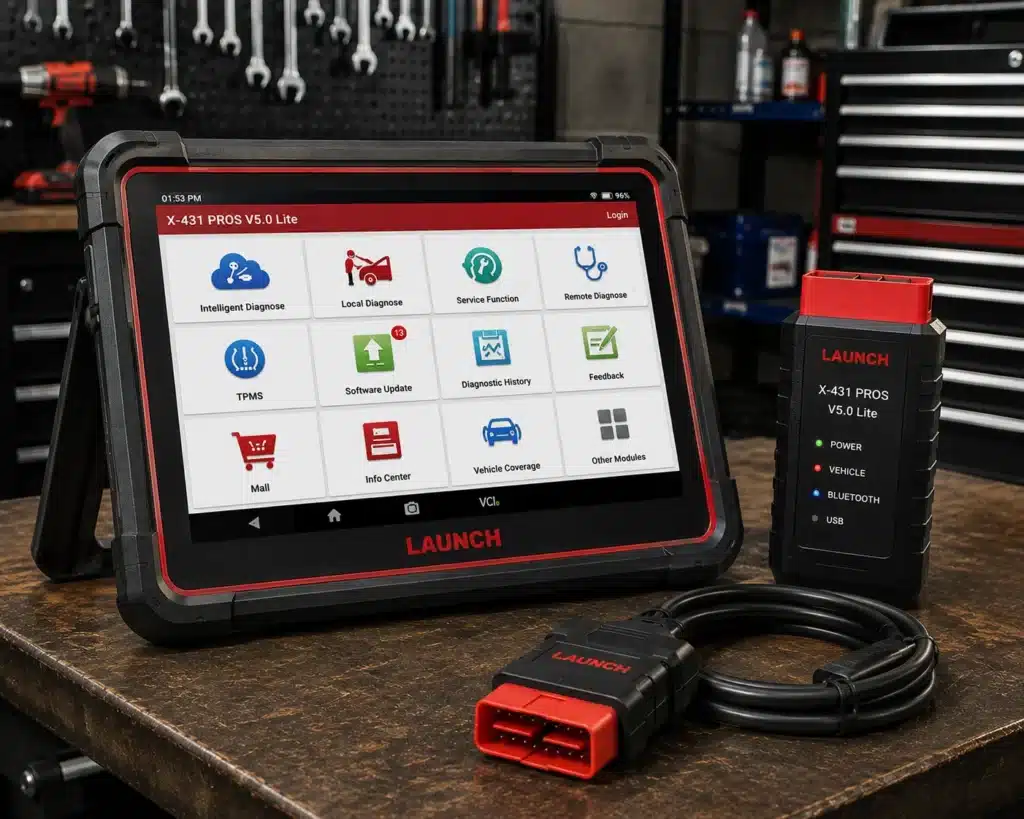
The LAUNCH X431 PROS V5.0 is an 8-inch Android tablet with a Bluetooth connector called the DBScar VII. It reads and clears codes on all systems, streams live data, runs active tests, and carries a named list of service resets. Launch also lists CAN FD and DoIP, two protocols found on newer cars.
The short version: The PROS V5.0 is a workshop tablet for a technician who wants one tool for diagnosis and service work. Launch lists bidirectional control, 37 special functions, full system coverage on more than 110 brands, and two years of free updates. Amazon and Launch agree on most of this. They differ on ECU coding: the Amazon title says “ECU Code” and Launch’s comparison table says “ECU Coding: No”. Both are quoted below so you can decide with the facts in front of you.
Affiliate Disclosure: As an Amazon Associate I earn from qualifying purchases. Scan Choice Guide is a participant in the Amazon Services LLC Associates Program, an affiliate advertising program designed to provide a means for sites to earn advertising fees by advertising and linking to Amazon.com.
What the PROS V5.0 Actually Does
The kit has two parts. The tablet is where you work. The DBScar VII is a small connector that plugs into the OBD2 port and talks to the tablet over Bluetooth or a USB cable. Launch says the wireless link is easy to use, and the cable link is faster and steadier for heavier work such as coding.
Launch lists these tablet specs:
- Screen: 8 inch, 1280 by 800.
- System: Android 10, 2.0 GHz quad-core processor.
- Memory: 4 GB RAM and 64 GB storage.
- Battery: 6300 mAh.
- Camera: 8 MP rear camera, used to scan the VIN.
- Connections: dual-band Wi-Fi (2.4 and 5 GHz), Bluetooth and USB.
On the diagnosis side, Launch lists these functions:
- Read and clear codes on every system the software can reach, not only the engine.
- Live data. The app shows values as a list, as graphs, or as combined graphs. You can record a session and replay it later.
- Bidirectional control. The tablet sends a command to a part, such as a fan, a pump or a valve, and you watch the result.
- Coding and matching functions where the vehicle software offers them.
- Auto VIN. The tool reads the VIN and opens the right vehicle menu for you.
- Remote diagnosis. Launch says it supports real-time communication between two tools, or a tool and a computer, so a second person can help with a job.
Launch also says the tool covers more than 98 percent of cars on the market across more than 110 brands. This is a broad figure. It tells you the tool is made for wide coverage. For your own car, the Scanner Finder gives a more exact answer than any market-wide number.
Two protocol points matter if you work on newer cars. CAN FD is a faster version of the CAN network used in many recent vehicles. DoIP sends diagnostic messages over Ethernet. Launch’s page lists both for the V5.0. On the adapter, the page gives two statements. One sentence says the V5.0 runs the FD CAN protocol test without the adapter that the older V1.0 needs. The comparison table on the same page says “Yes with adapter” for both models. Because the two statements differ, we cannot say whether every CAN FD car needs the adapter. The page lists DoIP for the V5.0 and not for the V1.0.
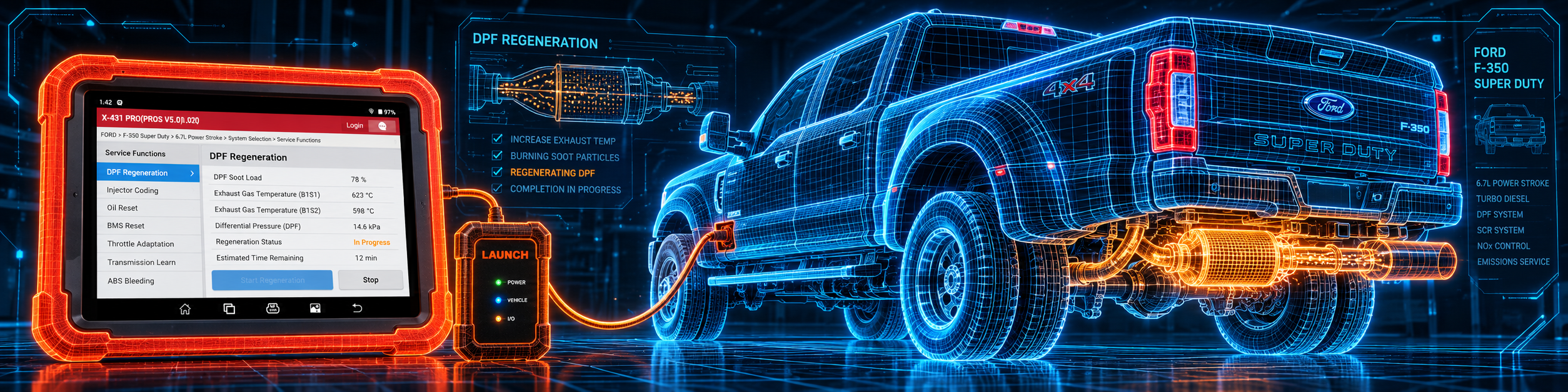
The picture below shows one of the jobs this kind of tool is made for. A diesel truck needs a forced regeneration of the particulate filter after the filter or a related sensor is replaced. The tablet starts the procedure and walks the technician through each step.
What Amazon Says vs. What Launch Confirms
This is the part where the two sources need a careful read. The Amazon listing is what most buyers see first, so it comes first here.
| Item | Amazon listing | Launch product page | Our reading |
|---|---|---|---|
| Name | “Launch X431 PROS V 5.0 2026” | “X-431 PROS V5.0” | Same tool |
| Bidirectional control | Yes | Yes | Both agree |
| Reset functions | “38+ Reset” in the title and “Over 38 Reset Services” in a bullet that names gear, SAS, EPB, TPMS, BMS, ETS, oil, brake, AFS, gearbox, sunroof and SUS resets, ABS bleed and injector coding | “37 special functions” | Close; both are counts, Launch names 17 |
| ECU coding | “ECU Code” and “Bluetooth Coding” in the title, and “Online Coding” in a bullet | “ECU Coding: No” | Amazon and Launch differ |
| CAN FD | “CANFD” in the title, and a bullet that says “With the CANFD Connector” | Yes; one sentence says no adapter, the table says “Yes with adapter” | Both list it; the adapter question stays open |
| DoIP | Not listed in the Amazon title or bullets | Yes | Launch only |
| FCA AutoAuth | “FCA AutoAuth” in the title; “Supports AutoAuth for FCA SGW” in a bullet | Yes | Both agree |
| Updates | “2 Years Free Updates” | “2 Years Free Update” | Both agree |
| Connector | “Wireless Connector” | DBScar VII, Bluetooth or USB | Both agree |
| Key programming | “K-EY programming” in a bullet | “Yes with X-PROG3”, sold separately | Both list it; Launch says it needs the separate X-PROG3 |
| Active tests | Names the radiator fan, throttle, windows, mirrors, injector buzz test, lights, horn and door lock actuators | Active test | Agree |
| Battery | “6300mAh battery lasts 15+ hrs work” | 6300 mAh | Same size; the 15 hours is Amazon only |
| ADAS calibration | Not listed in the Amazon title or bullets | “Yes with equipment”, optional ADAS PRO or ADAS Mobile | Launch only |
| Heavy-duty module | Not listed in the Amazon title or bullets | “No” | Launch only |
What the differences mean. The reset count is close. A count of 38 and a count of 37 usually come from two pages written at different times. Launch names 17 of the functions on its page. Those are: maintenance light reset, immobilizer reset, steering angle reset, IMMO programming, electronic throttle relearn, battery matching, TPMS reset database, DPF regeneration, brake reset, injector coding, ABS bleeding, crankshaft position sensor learning, gearbox relearn, AdBlue reset, EGR adaption, transport mode and window calibration.
ECU coding is the one real difference. Amazon says “ECU Code”. Launch’s own table says “ECU Coding: No”, while the same page lists injector coding and “coding and matching” among the tool’s functions. These can all be true at once, because injector coding and a function-level matching step are not the same as full online ECU coding. If full ECU coding is the main reason for your purchase, the PRO5 is the model that lists online ECU coding in the Launch-authorized sources we used. Our review of the LAUNCH X431 PRO5 covers it.
How we handle this difference. The feature table at the bottom of this page, the Scanner Finder and our comparisons follow the Amazon listing, because Amazon is where you buy and where you will read the same title. That is why the table shows ECU Coding as Yes. We name the difference here so you can see both sources. If ECU coding matters to you, read this section and the Important Limitations section below before you decide.
A third source on the FCA gateway. Both Amazon and Launch list FCA AutoAuth. The Equipment and Tool Institute, a trade group of tool makers, publishes the rules behind it. In its AutoAuth overview, the Institute explains that Fiat Chrysler Automobiles added a Secure Gateway module to most 2018 model year and later vehicles. It says the gateway “does not restrict access to diagnostic data” and instead limits intrusive diagnostics, such as bidirectional controls, for users who are not registered and authenticated. The Institute’s FAQ adds that registration is done one time, that the number of vehicles you can service is then unlimited, and that there is a yearly fee for the user or the shop. It also says that once the gateway is unlocked, the aftermarket tool has the same capabilities as on vehicles without the gateway. In practice, this means that on a Chrysler, Dodge, Jeep or Ram from 2018 on, you register once through the tool maker’s process before bidirectional tests will run. This source is independent of both Amazon and Launch.
Is the PROS V5.0 Enough for You?
A quick table gives the first answer. “Enough” depends on the work you do.
| If your work is | Does the PROS V5.0 list it? |
|---|---|
| Reading and clearing codes on all systems | Yes |
| Live data and graphs | Yes |
| Active tests on parts | Yes |
| Oil, brake, steering angle, throttle resets | Yes |
| DPF regeneration and AdBlue reset | Yes |
| ABS bleeding | Yes |
| TPMS reset database | Yes |
| Battery matching | Yes |
| Injector coding | Yes |
| Full online ECU coding | Amazon: Yes. Launch: No |
| Key programming | Yes. Amazon lists it, and Launch says it needs the separate X-PROG3 |
| TPMS sensor programming | Yes, with the separate TSGUN or I-TPMS, per Launch’s table |
| J2534 reprogramming | Not listed on Launch’s product page |
| Heavy-duty truck module | No, per Launch’s table |
| ADAS calibration | Not on its own. Launch lists optional ADAS PRO or ADAS Mobile equipment |
| VAG guided functions | Yes, “comes with device” per Launch’s table |
For a general repair shop, a mobile technician or a serious home mechanic, the top half of this table covers most days. The bottom half lists the jobs that need extra hardware or a different Launch model. That is not a flaw in the tool. It is how Launch splits its range.
Will the PROS V5.0 Work on Your Car?
Launch says more than 98 percent of cars and more than 110 brands. That includes U.S., Asian and European makes. The software is downloaded brand by brand, so the tool only works on a brand after that brand’s package is installed. During setup, the update screen selects all packages by default. Leave them all selected the first time, and the tool will be ready for any car that comes in.
For a more exact answer, use the Scanner Finder. Pick your year, make and model. The Finder shows which of our reviewed tools list your car.
Newer cars bring two extra questions:
- CAN FD cars. Launch lists CAN FD for the PROS V5.0. Its page is not consistent on whether an adapter is needed, so treat the adapter as a possible extra if you work on CAN FD cars.
- DoIP cars. Launch lists DoIP for the V5.0. This is the Ethernet-based protocol used on newer vehicles.
- FCA cars from 2018. Register through AutoAuth first, as explained in the section above.
Older cars with a round or odd-shaped diagnostic socket need the adapter cables. Launch’s page lists “OBD1 cables and adapters” in the box.
How to Set Up and Use the PROS V5.0
This section follows the steps in Launch’s X-431 PRO5 manual, which describes the same X-431 app on a similar tablet. Your PROS V5.0 screens may look a little different, and the menu names below are the ones Launch uses in that manual. The DBScar VII replaces the older connector named in that manual.
Step 1: Charge the tablet and get online
Charge the tablet fully before first use. Turn it on with the power key. Then connect it to Wi-Fi: open Settings, tap Network & Internet, then WLAN, switch it on, pick your network and enter the password. You need internet for registration, for software downloads and for the VIN lookup. Turn Wi-Fi off when you do not need it, to save battery.
Step 2: Register the tool
Open the X-431 app on the home screen and tap Login in the upper right corner. Tap New Registration and fill in the fields marked with a star. After you tap Register, the app asks for the Serial Number and Activation Code. Both are on the card in the password envelope in the box. Keep that envelope in a safe place.
If you tap Skip, you can activate the connector later from User Info, then Activate VCI.
Step 3: Download the software
After activation, the app asks if you want to download the diagnostic software. Tap Yes. On the update screen, tap Update. The packages download and install on their own. This takes several minutes, and it can take longer on slow Wi-Fi. Do not close the app, and do not turn off Wi-Fi until it ends.
Step 4: Connect to the car
- Park the car, set the parking brake, and put an automatic in Park or a manual in Neutral. Launch’s manual also says to chock the wheels.
- Find the OBD2 socket. It is usually under the dashboard on the driver’s side. On some cars it sits behind a cover or an ashtray.
- Plug the DBScar VII in first. Launch’s manual says not to connect or disconnect the tool while the ignition is on or the engine is running.
- Turn the ignition on. Launch lists these normal testing conditions: ignition on, correct battery voltage and the throttle closed.
- On the tablet, open the app and use Search Bluetooth to find the connector. After the connector is activated, it is bound to your account and pairs with the tablet on its own the next time.
If the connector was used with another tablet before, the manual says to unpair it first. Go to Settings, Connected devices, Previously connected devices, pick the connector and tap Forget. Or tap User Info, VCI Management, then Deactivate matching.
Step 5: Pick how to start
The Job menu has several entries. Two are the most used:
- Intelligent Diagnose reads the VIN over Bluetooth, looks it up online, and opens the vehicle page. The page lists earlier diagnostic records for that vehicle. You need a stable internet connection for this. If the VIN cannot be read, you can scan it with the camera or type it in. A VIN has 17 characters and never uses the letters I, O or Q.
- Local Diagnose works offline. You pick the brand, the model and the year by hand, then choose a test item.
On the test item screen, the options are Health Report, System Scan and System Selection.
- Health Report scans every control unit and shows a report. Systems with a fault code show in red.
- System Scan lists the systems the car has.
- System Selection lets you choose a system, such as the engine, and go straight to its functions.
Step 6: Read, clear and watch live data
Inside a system, the function list has these items:
- Version Information shows the software and ECU versions.
- Read Fault Code lists the codes. The Freeze Frame button shows the snapshot saved when the fault set. The Code Search button looks the code up online.
- Clear Fault Code erases the codes. Turn the ignition on with the engine off first. Clearing a code does not fix the cause. If the fault is still there, the code comes back.
- Read Data Stream shows live values. Tick the items you want, then tap OK. Values outside the reference range show in red. Use Graph for waveforms and Record to save a session.
- Actuation Test is the bidirectional part. The tablet sends commands to parts and you follow the on-screen steps. Each step shows “Completed” when it works.
- Special Function opens the system’s reset functions.
Save a report before you repair and another after. The Health Report screen has a Compare Results button that shows which codes are gone and which remain. This is a quick way to show a customer that the job worked.
Step 7: Run a reset
The Job menu has a Reset entry that works like a shortcut. Tap Reset, pick the service you need, pick the brand, pick the service mode, and follow the on-screen steps. The manual says some resets run automatically and others walk you through manual steps. The mode you see depends on the car.
Launch’s manual explains when each reset is used. A few examples:
- Oil reset. After an oil change, so the service light goes out and a new interval starts.
- Brake reset. After new brake pads, or when the brake pad warning lamp is on.
- Steering angle. After replacing a steering part, after a wheel alignment, or after body repair.
- ABS bleeding. After the ABS pump, the master cylinder or brake lines are replaced, or when there is air in the system.
- Battery matching. After the main battery is replaced, so the car stops reporting a false low battery.
- DPF regeneration. After the filter, a sensor, or the control module is replaced, or after a regeneration warning light is serviced.
- TPMS. To look up tire sensor IDs and reset the warning after a tire service.
- Throttle reset. To return learned throttle values to their defaults.
The AdBlue reset and the window calibration come from Launch’s named list on the product page.
Step 8: Keep it updated
Tap Software Update on the Job menu. All packages are selected by default. Tap Update to download them. Launch says the tool includes two years of free updates. When the period ends, the update page shows a Renewal button. In Launch’s manual, you can pay through PayPal or with a renewal card bought from the dealer.
Step 9: Fix common problems
- The connector will not pair. If it was used with another tablet, unpair it first, as described in Step 4, then search again.
- The VIN will not read. Use the camera scan. If that fails, type it in.
- A download stops. Tap Retry. Check that Wi-Fi is still on.
- A reset is not in the menu. Resets vary by vehicle. Try the same reset from inside the system menu, under Special Function.
Where the PROS V5.0 Sits Against the Alternatives
Launch sells several tablets that look alike. They differ in what they add.
| PROS V5.0 | PRO5 | PRO3S+ Elite | |
|---|---|---|---|
| Bidirectional control | Yes | Yes | Yes |
| ECU coding | Amazon: Yes. Launch: No | Yes, online | Yes, online and offline |
| J2534 reprogramming | Not listed on Launch’s product page | Not listed in our PRO5 review | Yes, with the SmartLink C V2.0 module |
Our PRO5 vs PRO3S+ Elite vs PROS V5.0 comparison puts the three side by side. The short answer is that the PROS V5.0 is the one to look at for service work with CAN FD and DoIP listed on Launch’s page, the PRO5 is the one when online ECU coding matters, and the PRO3S+ Elite is the one when J2534 pass-through matters.
A diesel truck is a good example of where the PROS V5.0 earns its place. After a forced DPF regeneration, the next job on many diesel pickups is an AdBlue reset, so the warning clears and the system learns the new tank state. Both are on Launch’s list, and the same tablet handles both.

Who This Scanner Actually Fits
The PROS V5.0 fits a technician or shop that does service work on many brands and wants bidirectional tests, a long reset list and a modern protocol set in one tablet. It also fits a mobile mechanic who values a Bluetooth connector and a camera for VIN scanning. A home mechanic with several cars and some budget for a tool will find it covers far more than a code reader. It is a good match for diesel pickup work, where DPF regeneration and AdBlue resets are routine.
Important Limitations of the LAUNCH X431 PROS V5.0
- ECU coding differs between sources. Amazon’s title says “ECU Code”. Launch’s table says “ECU Coding: No”. If full online coding is the reason you are buying, the PRO5 is the model that lists it in the sources behind our PRO5 review.
- Launch names 17 of the 37 functions. The rest are covered by the count and not listed one by one.
- Key and TPMS sensor work needs extra hardware. Launch sells X-PROG3 for keys and TSGUN or I-TPMS for TPMS sensors as separate items.
- Coverage is a market-wide figure. The 98 percent claim is Launch’s own. Check your vehicle in the Scanner Finder.
- Updates run for two years. After that, you renew to keep downloading new software.
- The tool is large for a glovebox. It is an 8-inch Android tablet, not a pocket reader.
- Product names vary across stores. Launch lists this line under several names, such as PROS V5.0, PRO V5.0 and PROS Elite. Make sure you read the right listing before comparing.
Who Should Choose It, and What to Consider Instead
Choose the PROS V5.0 if you want bidirectional tests, a long reset list and CAN FD with DoIP in one tablet.
Consider the LAUNCH X431 PRO5 instead if online ECU coding is the main reason you are buying. Consider the LAUNCH X431 PRO3S+ Elite instead if you need J2534 pass-through reprogramming.
| Specification | Details |
|---|---|
| Screen | 8 inch, 1280 by 800 |
| System | Android 10, 2.0 GHz quad-core |
| Memory and storage | 4 GB RAM, 64 GB |
| Battery | 6300 mAh |
| Connector | DBScar VII, Bluetooth or USB |
| Coverage | More than 98 percent of cars, more than 110 brands, per Launch |
| Bidirectional control | Yes |
| Special functions | 37 per Launch, 17 named |
| ECU coding | Amazon: Yes. Launch: No |
| CAN FD | Yes; Launch’s page differs on the adapter |
| DoIP | Yes |
| FCA AutoAuth | Yes |
| Updates | Two years free, per Amazon and Launch |
| Pros | Cons |
|---|---|
| Bidirectional control listed by Launch | Focused on service work more than full coding |
| 17 named service functions, including DPF, AdBlue, ABS bleeding and injector coding | Key programming and TPMS sensor work need extra hardware |
| CAN FD and DoIP both listed | |
| FCA AutoAuth listed | |
| Bluetooth or USB connector | |
| Auto VIN, health report and remote diagnosis | |
| Two years of free updates |

Methodology: How SCG Evaluates OBD2 Scanners.
Not sure the PROS V5.0 is the right Launch model? Our LAUNCH PRO5 vs PRO3S+ Elite vs PROS V5.0 comparison compares it with the PRO5 and the PRO3S+ Elite on J2534, ECU coding and CAN FD.
Our Verdict on the LAUNCH X431 PROS V5.0
The PROS V5.0 is a solid service tablet with bidirectional control, a named reset list, and CAN FD with DoIP. Amazon and Launch agree on nearly everything except ECU coding, so read that row before you buy. If service work is your main job, it fits well.
Frequently Asked Questions
Does the PROS V5.0 support ECU coding?
Amazon’s title says “ECU Code”. Launch’s own comparison table says “ECU Coding: No”. Launch’s page does list injector coding and coding and matching functions. If you need full online ECU coding, our PRO5 review lists it for that model.
How many reset functions does it have?
Launch says 37 special functions and names 17. Amazon’s title says “38+ Reset”. The named list includes oil, brake, steering angle, throttle, battery matching, TPMS database, ABS bleeding, DPF, AdBlue, injector coding and gearbox relearn.
Does it need a separate adapter for CAN FD?
Launch’s page says both things. One sentence says the PROS V5.0 runs the FD CAN protocol test without the adapter its older V1.0 needs. The comparison table on the same page says “Yes with adapter” for both models, and an Amazon bullet speaks of a “CANFD Connector”. We cannot say which applies to every car, so plan for the adapter as a possible extra.
Does it work on Chrysler, Dodge, Jeep and Ram from 2018?
Amazon and Launch both list FCA AutoAuth. Those vehicles have a Secure Gateway module. According to the Equipment and Tool Institute, you register once through the tool maker’s process, and then bidirectional tests can run.
Do I need internet to use it?
You need internet for registration, software downloads, updates and the Intelligent Diagnose VIN lookup. Local Diagnose, where you pick the vehicle by hand, works with the software you already downloaded.
What comes in the box?
Launch’s page lists the main unit, the DBScar VII connector and a set of OBD1 cables and adapters.
Can it program keys or TPMS sensors?
Not on its own. Launch’s page lists X-PROG3 for key work and TSGUN or I-TPMS for TPMS sensors as separate items.
What happens after two years?
To keep downloading new software, you renew the subscription. Launch’s manual describes paying by PayPal or with a renewal card.
Is it compatible with my specific vehicle?
Launch lists very broad coverage. Use the Scanner Finder to check your year, make and model.
Trusted Sources
- Launch X431 PROS V5.0 official product page: specifications, special functions, comparison table, CAN FD, DoIP, FCA AutoAuth, add-on modules
- Verified Amazon listing: current listing title and marketed claims
- Launch X-431 PRO5 user manual: registration, connection, diagnosis and reset menu steps in the X-431 app
- Equipment and Tool Institute, AutoAuth High Level Overview: FCA Secure Gateway and aftermarket tool authentication
- Equipment and Tool Institute, Security Gateway Module FAQ: registration and capabilities after unlock
