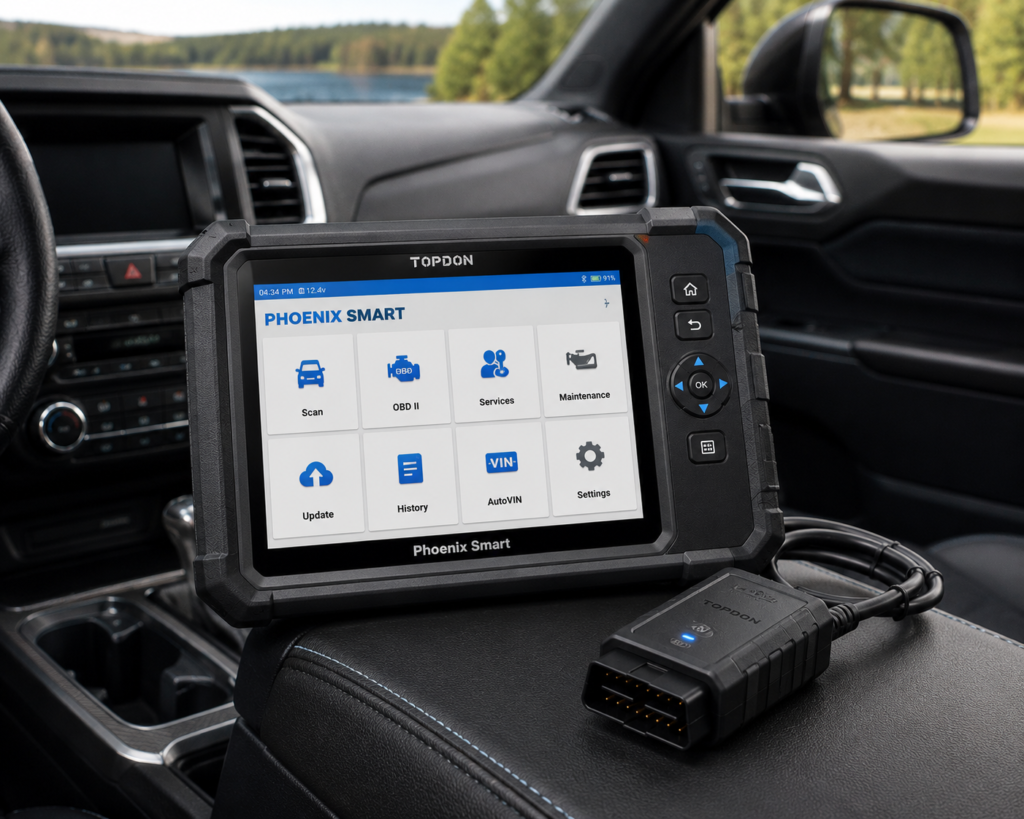
The TOPDON Phoenix Smart is a 10.1 inch Android tablet that works with a small connector called the Phoenix MDCI Pro. It is built for a shop. It reads and clears codes on all systems, runs active tests, and lists a long set of service resets. It also lists J2534 pass-through, DoIP, CAN FD, online coding and cloud-based programming.
The short version: The Phoenix Smart is a shop tool, not a home tool. Amazon calls it a scan tool “for ECU Programming & Coding” with CAN-FD and DoIP, and TOPDON lists the same. TOPDON adds the coding brands, the number of service functions, and the update terms. The tablet comes with two years of free updates, and after that TOPDON lists a yearly renewal. Read that part before you buy.
Affiliate Disclosure: As an Amazon Associate I earn from qualifying purchases. Scan Choice Guide is a participant in the Amazon Services LLC Associates Program, an affiliate advertising program designed to provide a means for sites to earn advertising fees by advertising and linking to Amazon.com.
What the Phoenix Smart Actually Does
The kit has two parts. The tablet is where you work. The Phoenix MDCI Pro is a connector with its own 3.97 inch screen. It plugs into the OBD2 port and talks to the tablet. TOPDON’s manual says the tablet and the connector pair over Bluetooth, and the connector’s local link runs over Wi-Fi or USB.
TOPDON lists these tablet specs:
- Screen: 10.1 inch, 1280 by 800.
- System: Android 10.
- Processor: 4 cores at 2.0 GHz.
- Memory: 4 GB RAM and 128 GB storage.
- Camera: 8 MP, rear.
- Wi-Fi: 2.4 and 5 GHz.
- Battery: 12,600 mAh on TOPDON’s product page. The manual lists 12,000 mAh.
On the diagnosis side, TOPDON and Amazon list these functions:
- Full-system diagnosis. TOPDON says more than 200 vehicle brands. Amazon says “200+ Brands”.
- Read and clear codes. You see the code, its meaning and a freeze frame where the car allows it.
- Live data. You can view values as a list, as graphs, or as combined graphs. You can save a sample while the car runs well and compare against it later.
- Active tests. Amazon calls the tool a “Bidirectional Diagnostic Tool”. The manual calls the menu item Actuation Test.
- Topology mapping. A map of the car’s systems. Amazon lists it in the title, and the manual says the system menu has a topology view and a list view.
- Online coding and programming. TOPDON’s page names online coding for Mercedes (SCN), BMW, VW, Audi, Skoda, SEAT, Porsche and Renault. It says cloud-based programming works for 13 or more brands.
- Protocols. The manual lists J2534, DoIP, CAN FD and many older protocols. TOPDON’s product page and an Amazon bullet also name D-PDU and RP1210.
- FCA gateway access. TOPDON’s page says the tool supports FCA Gateway Access, which TOPDON says lets you work on the most modern vehicles and adjust protected functions.
The picture below shows cloud-based programming on a Porsche. The tablet leads the technician through the steps, and the connector stays plugged into the car the whole time.

What Amazon Says vs. What TOPDON Confirms
We compared the Amazon listing with TOPDON’s product page and TOPDON’s user manual. Most points agree. A few need care.
| Claim | Amazon listing | TOPDON | Our reading |
|---|---|---|---|
| Name | “TOPDON Phoenix Smart OBD2 Scanner” | “Phoenix Smart” | Same tool |
| Programming and coding | “ECU Programming & Coding” | Online coding for 8 named brands, cloud-based programming for 13+ brands | Agree |
| Bidirectional control | “Bidirectional Diagnostic Tool” | Actuation Test and special functions, per the manual | Agree |
| Brands | “200+ Brands” | “more than 200 vehicle brands” | Agree |
| Protocols | “CAN-FD & DoIP” in the title; a bullet lists J2534, Do-IP, CANFD, D-PDU and RP1210 | J2534, DoIP, CAN FD, D-PDU and RP1210 | Agree |
| Service functions | “41+” in one bullet and “40+” in another | “41” on the product page; 35 named items in the manual | Agree; the manual names fewer |
| ADAS | “ADAS Compatibility” | Needs the separate Phoenix ADAS Mobile Package | Needs extra equipment |
| Updates | “2 Years Free Update” | “2 Years of Free Software Upgrades”, then a yearly renewal | Renewal on TOPDON only |
| Topology mapping | In the title | Topology view in the system menu | Agree |
| FCA gateway access | Not listed on Amazon | “FCA Gateway Access”, per TOPDON’s page | TOPDON only |
| Screen | 10.1 inches | 10.1 inch, 1280 by 800 | Agree |
| Size | 7.52 x 1.89 x 10.94 in | 278 x 191 x 48 mm, per the manual | Agree |
| Battery | Not listed | 12,600 mAh on the product page, 12,000 mAh in the manual | TOPDON’s two documents differ |
| Warranty | Not listed | 12 months, per the manual | TOPDON only |
The programming point matters. Amazon says “ECU Programming & Coding”. TOPDON gives the detail. Online coding is listed for eight named brands. Cloud-based programming is listed for 13 or more brands. The manual lists J2534 among the protocols and describes the connector’s USB Type B port as built for stable communication during ECU programming and key programming. TOPDON’s pages do not list which cars each brand covers, so the Scanner Finder is the best way to check your car.
The service functions point matters. TOPDON’s product page says 41. Amazon says 41 or more in one bullet and 40 or more in another. The manual names 35. All three point the same way. The tool has a long reset list, and the number you read depends on the page.
The update point matters. Both sources list two free years of updates. TOPDON’s product page also lists a yearly renewal after that. TOPDON states the renewal price on its own page. Amazon does not list the renewal.
The ADAS point matters. Amazon lists “ADAS Compatibility”. TOPDON says you pair the tool with its separate Phoenix ADAS Mobile Package, and the manual says ADAS needs extra hardware that you must buy. So ADAS is possible, but not with the tablet alone.
A third source. SAE International, the standards body for the auto industry, publishes SAE J2534-1. Its abstract says it describes a standardized interface that connects between a standard personal computer and the vehicle, to enable reprogramming of emission-related control modules in 2004 and later model year vehicles. It says the aim is that “reprogramming software from any vehicle manufacturer is compatible with interface supplied by any tool manufacturer”. The current issue is dated January 5, 2022. This source is independent of both Amazon and TOPDON. It explains what the word J2534 means on the tablet’s spec list: a standard connection that lets a PC-based car-maker program work through a tool maker’s connector.
How we handle these differences. The feature table at the bottom of this page, the Scanner Finder and our comparisons follow the Amazon listing, because Amazon is where you buy. We name the points above so you can see where TOPDON says more than Amazon. If one of them matters to you, read this section before you decide.
Is the Phoenix Smart Enough for You?
A short table gives the first answer.
| If your work is | Does the Phoenix Smart list it? |
|---|---|
| Reading and clearing codes on all systems | Yes |
| Live data, graphs and sample comparison | Yes |
| Active tests | Yes |
| Oil, brake, steering angle and throttle resets | Yes |
| DPF regeneration, AdBlue and NOx reset | Yes |
| ABS bleeding and battery matching | Yes, per TOPDON and its manual |
| TPMS reset | Yes, per TOPDON and its manual |
| Online coding on named brands | Yes |
| Cloud-based programming on 13+ brands | Yes |
| J2534 pass-through | Yes, listed by TOPDON and Amazon |
| DoIP and CAN FD | Yes |
| FCA gateway access | Yes, listed by TOPDON |
| ADAS calibration | Not with the tablet alone. Needs the separate Phoenix ADAS Mobile Package |
| Battery testing | Not with the tablet alone. The manual lists a Tester that needs extra hardware |
| Heavy truck systems | The manual lists J1939 and J1708 protocols. Truck coverage is not listed on TOPDON’s product page |
For a shop that does service work and coding on newer cars, the top half covers most of the day. The bottom half lists work that needs extra equipment.
Will the Phoenix Smart Work on Your Car?
TOPDON says full-system diagnosis for more than 200 brands. The manual has a Library with a Coverage List. You pick the make, model and year there, and it shows the supported functions and systems.
Coding and programming are narrower. TOPDON’s page names eight brands for online coding and says 13 or more brands for cloud-based programming. Exact coverage depends on the year, model and system. Use the Scanner Finder to check your car.
Two points for newer cars:
- CAN FD and DoIP. Both are listed by Amazon and TOPDON. The manual lists both protocols.
- Network. The AutoScan VIN lookup needs a stable network connection, according to the manual.
How to Set Up and Use the Phoenix Smart
This section follows TOPDON’s user manual for the Phoenix Smart and the menu names it uses.
Step 1: Unpack and check the box
The manual lists the tablet, the Phoenix MDCI Pro, an OBDI adapter box transfer line, a diagnostic cable, a cigarette lighter cable, a Type-C to USB cable, a Type A to B cable, battery clamps and a cable set, a power adaptor, a user manual, a password letter, 10 non-standard OBDII adapters and fuses.
Keep the password letter. It holds the serial number and the activation code.
Step 2: Connect the connector to the car
- Turn the ignition off.
- Find the OBD2 port.
- Plug the Phoenix MDCI Pro into the port.
- Turn the ignition on. The manual says the engine can be off or running.
The manual says not to connect or disconnect any test equipment with the ignition on or the engine running. It also lists the connector’s ports. The USB Type B port is for stable communication during ECU programming and key programming. The 12 volt power port is a separate power supply for J2534 and Bluetooth communication. The Ethernet port is listed as a reserved function.
Step 3: Start the tablet and register
- Fully charge the tablet. Hold the power button for 3 seconds to turn it on.
- Choose the language and the time zone.
- Connect to Wi-Fi.
- Read the user agreement and tap Agree with above terms, then Next.
- Log in with a TOPDON account, or register a new one with a valid email address.
- On the activation screen, enter the serial number and the activation code from the password letter. The manual says the serial number has 12 digits and the activation code has 8. Tap Activate.
The manual says activation is necessary to use the tool properly. If you skipped it, go to User Info, then Activate MDCI.
Step 4: Update
Tap Update on the Home menu and tap Update again to upgrade the selected software. The manual says this module updates the diagnostic software and the app.
Step 5: Identify the car
The Home menu has Scan, AutoScan, Services, Support, History, Update, Library, ADAS (optional), Tester (optional), Feedback and User Info.
- AutoScan reads the VIN automatically when the connector is on the car. A stable network is needed.
- Scan has two paths. VINSCAN offers Camera Scan or Enter VIN. Or you pick the make, model and year yourself.
A VIN has 17 characters and never uses the letters I, O and Q. The camera can read the VIN barcode or the VIN characters, and you can edit the result if it is wrong.
Step 6: Choose how to test
After the car is known, the tablet opens a system menu with a topology view and a list view. You can switch between them. Two quick options help:
- Smart Scan checks all systems for codes and shows a health report. Systems with codes show in red. You can clear all codes with one touch or save a report.
- System Scan scans all systems of the car.
You can also pick one system, for example the engine control module, and tap Enter.
Step 7: Use the function menu
Inside a system, the manual lists these options, and they depend on the car:
- Version Information reads the ECU version.
- Read Fault Code shows the codes. Buttons include Freeze Frame, Code Search, Data Stream and Report.
- Clear Fault Code clears the codes in that system.
- Read Data Stream shows live values. Pick the items and tap OK. You can view them as Value, Graph or Combine. The manual says up to 12 values show as graphs and up to 4 can be combined. Save Sample and Compare Sample help you compare a running car with a good sample. Record saves a session.
- Actuation Test tests output parts of a system.
- Special function is for data writing to a control unit, such as ECU calibration and programming. Some resets are in this menu too.
Step 8: Run a service reset
Tap Services on the Home menu. The manual names 35 items. A few examples, with the manual’s own reasons:
- OIL. After an oil change, so the service lamp goes out and a new interval starts.
- SAS. After a steering part is replaced, or after a wheel alignment, to set the steering angle to zero.
- BMS. After a battery change, so the car stops reporting a false low battery.
- BLEEDING. After the ABS pump or brake lines are replaced, or when there is air in the lines.
- BRAKE. After new brake pads, or when the brake pad lamp is on.
- DPF. After a DPF sensor or the filter is replaced, or after the regeneration lamp is serviced.
- TPMS. To reset the tire pressure indicator after a tire service.
- ADBLUE. After the diesel exhaust fluid is replaced or filled up.
- IMMO. To match a key after the ignition switch, instrument cluster, ECU or body control module is replaced.
- INJEC. To write the injector code after an injector or the ECU is replaced.
Other named items include throttle matching, gear learning, suspension level, EGR adaption, windows calibration, transport mode, stop and start, coolant bleeding, NOx sensor reset, seat calibration and motor angle calibration.
Step 9: Use the extras
- Library. It has an OBD fault code library, the coverage list, learning materials with playback of operations on specific cars, and a Chrome browser.
- History. It saves files for diagnosed cars, with reports, data stream records and screenshots.
- Support. It lets a remote technician help you through third-party software called TeamViewer, after you send your device ID.
- Feedback. It sends the last 20 test records to TOPDON.
- Tester. It checks battery performance with an optional battery detection module that you buy separately.
Step 10: Fix common problems
The manual’s FAQ names these:
- The tablet will not turn on. Charge it for more than 2 hours. Use only the charger that came with it.
- You cannot register. Check the network, use another email address if yours is already registered, and check that the verification code arrived.
- The tool is not activated while updating. Go to User Info, Activate MDCI, and enter the serial number and activation code.
- The tablet cannot connect to the connector. Unplug it and plug it in again, then pair Bluetooth again. If the firmware is damaged, use Fix Connector Firmware/System.
- The connector has no power. Unplug and plug it in again, check the car battery and the fuse for the OBD port.
- A communication error shows. Check that the connector is attached and the ignition is on. You can send the vehicle details through Feedback.
Common Mistakes and Three Simple Plans
1. Losing the password letter. The serial number and activation code are in it.
2. Planning a year of updates and forgetting the end date. Two free years run out. After that TOPDON lists a yearly renewal.
3. Expecting ADAS calibration from the tablet alone. It needs the separate package and hardware.
4. Expecting every brand to be coded online. TOPDON names eight brands for online coding and 13 or more for cloud-based programming.
Plan A: A service reset after a repair
- Connect the connector and turn the ignition on.
- Open Services and pick the reset.
- Pick the brand and follow the screen.
Plan B: A car with several warning lights
- Run Smart Scan.
- Save the report.
- Open the red systems one by one and read the codes with freeze frame.
Plan C: Comparing live data with a good sample
- On a car that runs well, open Read Data Stream and tap Save Sample.
- On the faulty car, open the same values and tap Compare Sample.
- Look at the Standard Range column to see which values differ.
Where the Phoenix Smart Sits in TOPDON’s Own Lineup and Against Others
| Phoenix Smart | TOPDON TopScan Master | TOPDON ArtiDiag600 S | LAUNCH X431 PRO3S+ Elite | |
|---|---|---|---|---|
| Full-system diagnosis | Yes | Yes, per Amazon | No, four systems only | Yes |
| J2534 pass-through | Yes, listed by TOPDON | Not listed on Amazon or TOPDON’s page | Not listed in our ArtiDiag600 S review | Yes, for six brands per our review |
| Online coding | Yes, named brands | Not listed on Amazon or TOPDON’s page | Listed in TOPDON's table; scope not stated | Yes |
Our TOPDON TopScan Master review covers a tool with broader reset coverage and no J2534. Our TOPDON ArtiDiag600 S review covers a lower tier tool. Our LAUNCH X431 PRO3S+ Elite review covers a competing shop tablet with J2534 hardware.
Within TOPDON’s range, the Phoenix Smart is the tool for programming and coding. The other tools in our reviews stay with diagnosis and resets. A shop that wants one tool for coding on newer European cars will look at this tablet first. The picture below shows the tablet connected to a Porsche, a good example of the OEM-level work it is made for.

Who This Scanner Actually Fits
The Phoenix Smart fits a shop that works on newer cars and needs coding, J2534 pass-through or cloud-based programming on its brands, and that can plan for the update terms after the first two years. It also fits a shop that wants full-system diagnosis and 35 or more service items on one tablet. It is more tool than a home mechanic needs for oil resets and code reading.
Important Limitations of the TOPDON Phoenix Smart
- Updates have an end date. Two free years, then a yearly renewal on TOPDON’s page.
- ADAS needs extra equipment. The Phoenix ADAS Mobile Package is sold separately.
- Coding is brand-limited. Eight brands for online coding and 13 or more for cloud-based programming, per TOPDON.
- Counts differ by page. The service function count is 41 on TOPDON’s page, 41 or more on Amazon and 35 named in the manual.
- Two battery sizes. TOPDON’s product page and manual list different battery capacities.
- Large and heavy. The tablet weighs 1.55 kilograms and the connector 550 grams, per the manual.
- Key and chip work may need extra tools. The manual lists IMMO programming as optional.
Who Should Choose It, and What to Consider Instead
Choose the Phoenix Smart if you need J2534, DoIP, CAN FD and online coding on named brands in one shop tablet.
Consider the TOPDON TopScan Master instead if you want TOPDON’s reset coverage without J2534 or OEM coding. Consider the LAUNCH X431 PRO3S+ Elite instead if your main need is J2534 on the brands listed in that review.
| Specification | Details |
|---|---|
| Screen | 10.1 inch, 1280 by 800 |
| System | Android 10 |
| Memory and storage | 4 GB RAM, 128 GB |
| Battery | 12,600 mAh per TOPDON’s product page, 12,000 mAh per the manual |
| Connector | Phoenix MDCI Pro, with a 3.97 inch screen |
| Protocols | J2534, DoIP, CAN FD and others, per the manual |
| Coverage | More than 200 brands for diagnosis, per TOPDON |
| Service functions | 41 per TOPDON, 41 or more per Amazon, 35 named in the manual |
| Online coding | Mercedes (SCN), BMW, VW, Audi, Skoda, SEAT, Porsche, Renault, per TOPDON |
| Cloud-based programming | 13 or more brands, per TOPDON |
| ADAS | Needs the separate Phoenix ADAS Mobile Package |
| Updates | Two free years per Amazon and TOPDON, then a yearly renewal on TOPDON’s page |
| Warranty | 12 months, per the manual |
| Pros | Cons |
|---|---|
| J2534, DoIP and CAN FD listed | Updates carry a yearly cost after two years |
| Online coding for eight named brands | ADAS needs separate equipment |
| Cloud-based programming for 13 or more brands | |
| 35 or more named service items | |
| Topology and list views, Smart Scan | |
| Connector with its own screen and Bluetooth |

Methodology: How SCG Evaluates OBD2 Scanners.
Our TOPDON vs LAUNCH comparison sets this tablet against the LAUNCH PRO3S+ Elite and PRO5.
Our Verdict on the TOPDON Phoenix Smart
The Phoenix Smart is a shop tablet for coding, programming and a long list of resets. Amazon and TOPDON agree on the main points. Plan for the update terms after the first two years. If you work on newer cars and need coding, it is a strong fit.
Frequently Asked Questions
What happens after the two free years?
Both Amazon and TOPDON list two free years. TOPDON’s product page also lists a yearly renewal, so plan for it as a running cost.
Does the Phoenix Smart include ADAS calibration?
No. ADAS is possible with TOPDON’s separate Phoenix ADAS Mobile Package and extra hardware.
Which brands can it code online?
TOPDON’s page names Mercedes (SCN), BMW, VW, Audi, Skoda, SEAT, Porsche and Renault. It says cloud-based programming works for 13 or more brands.
How many service functions does it have?
TOPDON’s product page says 41. Amazon says 41 or more. The manual names 35.
Does it need internet?
You need internet for registration, updates and the AutoScan VIN lookup. You can also pick the car by hand.
What is J2534?
SAE J2534 is a standard for a connection between a PC and the car that lets car-maker programs reprogram emission-related control modules in 2004 and later cars. TOPDON lists it among the protocols.
Is it compatible with my specific vehicle?
TOPDON lists very broad coverage. Use the Scanner Finder to check your year, make and model.
Trusted Sources
- TOPDON Phoenix Smart official product page: specifications, coding brands, service functions, update terms
- TOPDON Phoenix Smart user manual: setup, menus, service items, specifications, FAQ, warranty
- Verified Amazon listing: current listing title, bullets and product overview
- SAE J2534-1 Recommended Practice for Pass-Thru Vehicle Programming: what J2534 means