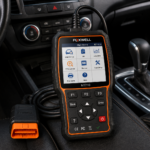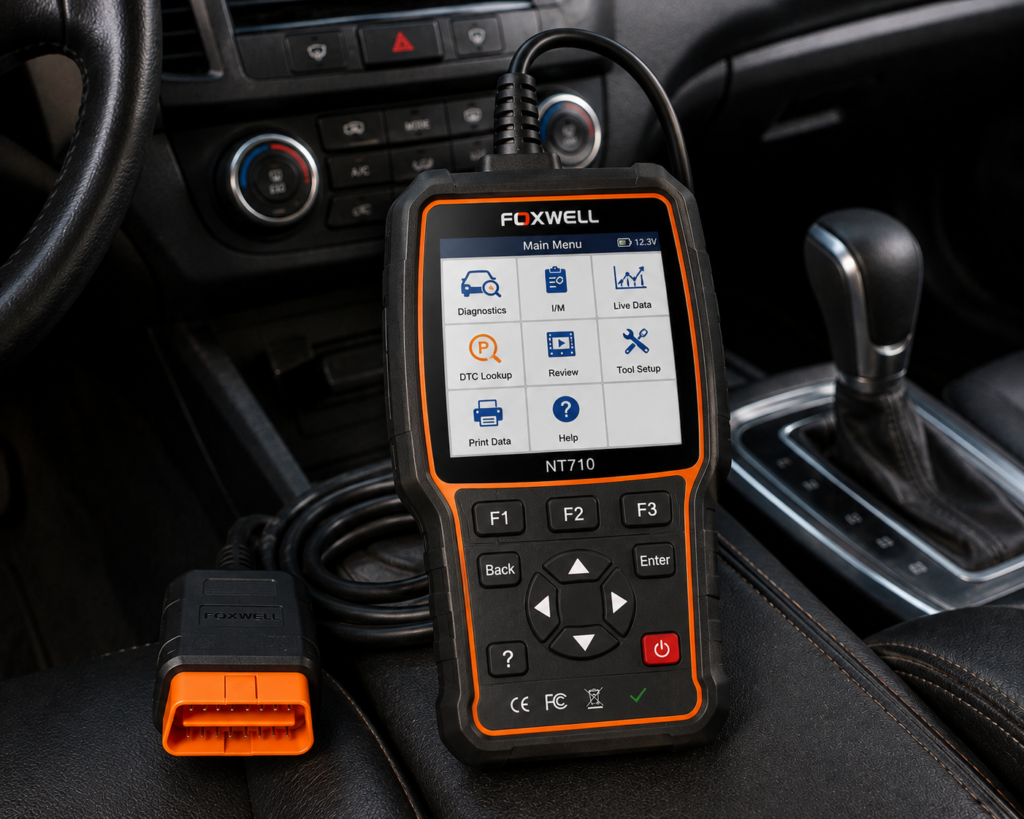
The Foxwell NT710 for GM is a 5.5 inch Android tablet scanner sold for Buick, Chevrolet, GMC and Cadillac cars. Amazon lists full-system diagnosis, bidirectional control, automatic VIN reading, lifetime free updates and a long set of resets, with crankshaft relearn named in the title. It connects to the car with a diagnostic cable.
The short version: This listing is a GM-focused scan tool for a driver or a small shop that wants active tests and resets on GM cars. Amazon and Foxwell agree on bidirectional control, updates and the reset list. Two points need care. Foxwell has no page for the GM version, so the manual and the blog describe the general NT710. And Foxwell’s own documents differ on coding, which is why we do not count ECU coding here.
Affiliate Disclosure: As an Amazon Associate I earn from qualifying purchases. Scan Choice Guide is a participant in the Amazon Services LLC Associates Program, an affiliate advertising program designed to provide a means for sites to earn advertising fees by advertising and linking to Amazon.com.
What the NT710 for GM Actually Does
The tool is one tablet. The screen, the processor and the connector to the car are all in one unit. You plug a diagnostic cable into the OBD2 port, and the tablet shows the results. There is no phone and no separate dongle.
Amazon lists these functions:
- Full-system diagnostics. Amazon says the tool covers the engine, transmission, ABS, airbags and tire pressure monitoring systems. It also clears trouble codes and resets the check engine light.
- Bidirectional control. Amazon says the tool lets you send active commands to the car’s components, and it names tests on doors, windows, mirrors, headlights, fuel pumps and fans.
- Automatic VIN reading and OBD2 modes. Amazon says the tool reads the VIN, starts a full system scan, and includes all 10 OBD2 test modes, with I/M readiness and EVAP and O2 sensor tests.
- Resets. The Amazon title names crankshaft relearn, oil, EPB, SAS, TPMS and ABS, and says “All Resets”.
- Live data. Amazon says you can watch up to four live data streams in one graph.
- Lifetime free updates. Amazon says there are no hidden fees or subscriptions, and that updates come over Wi-Fi with no computer needed. It also says built-in Bluetooth and Wi-Fi let you share or print PDF reports.
Foxwell’s blog and manual describe the general NT710 in more detail. The tablet has a 5.5 inch touch screen with 1280 by 720 pixels, runs Android 9, has a quad-core processor at 1.3 GHz, 1 GB of memory and 32 GB of storage, and a 4000 mAh battery. The manual says a full battery gives about five hours of continuous work. Foxwell’s blog says the general NT710 has more than 30 special maintenance functions. It lists EPB, oil reset, ABS bleeding, TPS, SAS, TPMS, DPF, injector, gear learning and others.
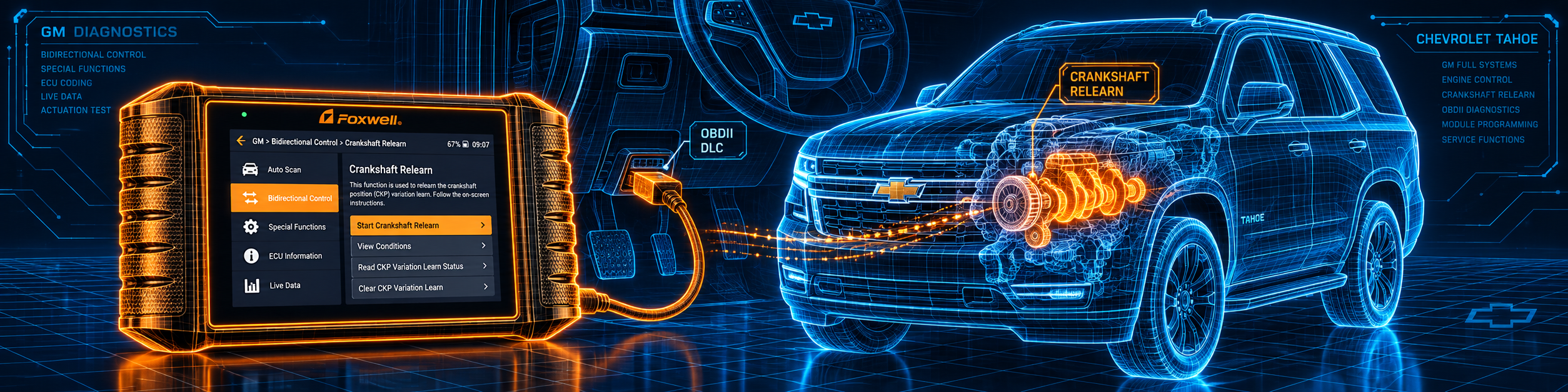
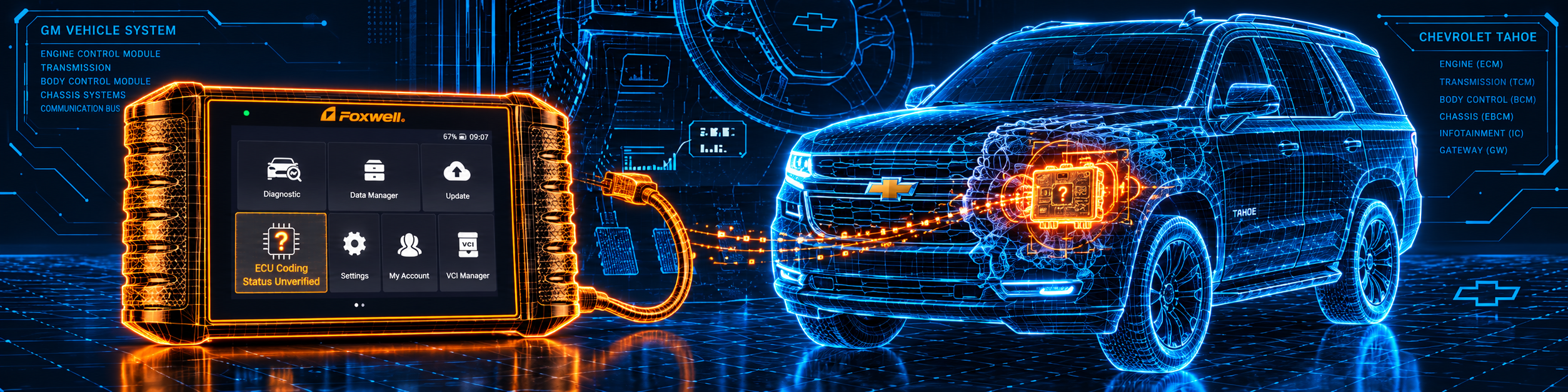
The picture below shows the job named in the Amazon title. A crankshaft position relearn on a Chevrolet is a procedure many shops cannot do without a scan tool that supports it.
What Amazon Says vs. What Foxwell Confirms
We compared the Amazon listing with Foxwell’s blog post and Foxwell’s user manual. Both Foxwell documents describe the general NT710. Foxwell has no page for the GM version, so a few points are read across.
| Claim | Amazon listing | Foxwell | Our reading |
|---|---|---|---|
| Product | “FOXWELL NT710 for GM” | General NT710, no page for the GM version | Foxwell documents are read across |
| Brands | Buick, Chevy, GMC, Cadillac | More than 50 brands, per the blog | Different scope |
| Bidirectional control | Yes, active commands | “activate or control systems and components”, per the blog | Agree |
| Resets | “All Resets”, with crankshaft relearn, oil, EPB, SAS, TPMS and ABS in the title | More than 30 special functions, per the blog | Agree; crankshaft relearn is named only on Amazon |
| ECU coding | Not listed in the title or bullets | Blog: does not support programming and coding. Manual: supports “the most commonly required service and coding features” | Foxwell’s documents differ |
| Updates | “Lifetime Free Updates” over Wi-Fi, no computer needed, no subscriptions | “lifetime free software update” and no annual subscription fee, per the blog | Agree |
| Live data graphs | Up to 4 streams in one graph | Multi-graph up to 4, and a merge graph, per the manual | Agree |
| Screen and system | 5.5 inch, Android 9.0 | 5.5 inch, Android 9.0 | Agree |
| Size | 9.3 x 1.5 x 4.9 in | 236 x 124 x 38 mm, per the manual | Agree |
| Wireless connection to the car | Bluetooth and Wi-Fi are listed for reports and updates | Blog: Bluetooth VCI wireless diagnostics are not supported | Cable to the car |
| Protocols | Not listed | CAN FD and DoIP are in the manual’s list | Foxwell only |
| Warranty | Not listed | One year, per the manual | Foxwell only |
The product point matters. Amazon sells the NT710 for GM. Foxwell’s blog and manual describe the general NT710 for 50 or more brands. Foxwell has no page for the GM version, so we read the general documents across, and we say so where it matters. This review covers the GM listing.
The coding point matters. Amazon’s current title and bullets do not mention ECU coding. Foxwell’s blog says the general NT710 does not support programming and coding. The manual’s introduction says the tool supports “the most commonly required service and coding features”, and its diagnosis section mentions special functions such as actuation and coding. Foxwell’s own documents do not agree with each other. We do not count ECU coding for this listing.
The crankshaft point matters. The Amazon title names crankshaft relearn. Foxwell’s blog does not name it in its list of functions. The third source below explains the procedure and why a scan tool is needed.
The wireless point matters. The manual lists Bluetooth and Wi-Fi in the tablet, and the Wi-Fi is used for updates. Foxwell’s blog says Bluetooth VCI wireless diagnostics are not supported. Amazon lists built-in Bluetooth and Wi-Fi for sharing and printing PDF reports, which is a different job from talking to the car. The tool talks to the car through its diagnostic cable.
A third source. CARDONE Industries, a parts maker, publishes a ProTech bulletin titled “GM Crankshaft Variation Relearn” (PT70-77-0003, 2020). It says the relearn must be done on all 1996 and newer GM vehicles with flash reprogramming control modules if the module was reprogrammed, if the crankshaft position sensor was replaced, or if the module was replaced. It lists the steps: attach a scan tool, apply the parking brake and block the wheels, put the transmission in park or neutral, warm the engine to operating temperature, select the relearn on the scan tool, and follow the on-screen speed instructions. It says that if the relearn is not learned, the code P1336 is stored. It tells the reader to refer to the vehicle’s service manual for the exact procedure. This source is independent of both Amazon and Foxwell.
How we handle these differences. The feature table at the bottom of this page, the Scanner Finder and our comparisons follow the Amazon listing, because Amazon is where you buy. That is why the table does not show ECU coding. We name the points above so you can see where Foxwell says more than Amazon, or something different. If one of them matters to you, read this section before you decide.
Is the NT710 for GM Enough for You?
A short table gives the first answer.
| If your work is | Does the NT710 for GM list it? |
|---|---|
| Reading and clearing codes on all systems | Yes |
| Live data and graphs | Yes |
| Active tests on parts | Yes |
| Oil, EPB, SAS, TPMS and ABS resets | Yes, per Amazon |
| Crankshaft relearn | Yes, per Amazon |
| ABS bleeding, DPF and injector resets | Yes, per Foxwell’s blog |
| ECU coding | Not listed on Amazon |
| Module programming | Not listed on Amazon |
| Brands other than GM | Not listed on Amazon |
| ADAS calibration | Not listed on Amazon or in Foxwell’s blog |
For a driver or small shop that works on Buick, Chevrolet, GMC or Cadillac, the top half covers the common jobs. The bottom half lists what needs a different tool.
Will the NT710 for GM Work on Your Car?
Amazon says the tool is for GM brands: GMC, Chevrolet, Buick and Cadillac. The general NT710 covers more than 50 brands, according to Foxwell’s blog, which lists American cars since 1996 and European cars since 2000. The GM listing carries GM software. Do not assume the other brands.
Use the Scanner Finder to check your year, make and model. The tool’s manual says options in each menu depend on the year, model and make of the car.
Two more points:
- Not every function is on every car. Resets and active tests depend on the vehicle. The manual says not all options apply to all vehicles.
- The manual lists CAN FD and DoIP. Amazon does not list them for the GM listing. Treat them as Foxwell’s note for the general NT710.
How to Set Up and Use the NT710 for GM
This section follows Foxwell’s NT710 user manual (version 1.1). It describes the general NT710, and the GM version uses the same tablet. Menu names may differ slightly by software.
Step 1: Power up and look at the tablet
The manual lists a power switch, a USB Type-C charging port, a USB Type-A port and a diagnostic port. Press and hold the power switch for 3 seconds to start or shut down. A double click takes a screenshot. The tablet charges through USB Type-C, and a full battery lasts about five hours of continuous work, per the manual. Turn the tablet off when you are not using it.
Step 2: Register a Foxwell ID
- Open My Account or Update on the home screen.
- Press Free registration.
- Enter an email address as the user name and press Send Code. Foxwell sends a 4-digit code.
- Enter the code, create a password and press Free Registration.
- The serial number shows after registration. Press Submit to activate the product.
If you sign in for the first time, the tool also offers to activate the device.
Step 3: Update
Make sure the network works and the tablet is fully charged or on external power. Then:
- Press Update. The update client starts.
- Tick the software you want and press Update.
- Wait for the “Update Done” message.
The manual also describes automatic update. In Settings, turn on Automatic Update to show an update mark when new software is out. A firmware update for the built-in connector is separate. The manual says the battery must be above 20 percent for it.
Step 4: Connect to the car
- Find the OBD2 port. The manual says it is usually under the dash on the driver side.
- Attach the diagnostic cable to the tablet and tighten the captive screws.
- Plug it into the port. Use the right adapter if the car needs one.
- Turn the ignition to ON.
The manual says to complete all vehicle communication before shutting down, and to exit the Diagnostic application before you power down.
Step 5: Identify the car
Press Diagnostic on the home screen. The VIN button in the title bar offers Automatic Read and Manual Entry. Check the VIN on screen and press OK. If it takes too long, press Cancel and type it in.
You can also choose the area (America, Asia, Europe), pick the make and use Smart VIN or Manual Selection with steps such as model year and engine type. History lets you restart a previous car without repeating the steps.
Step 6: Choose how to find the modules
- Quick Scan finds the control modules and shows a code overview. It may take a few minutes. You can pause it and choose a system. Press Report for an overview, Save to keep it, or Erase to clear the information.
- Control Modules lists all controllers of the brand. The manual says that does not mean they are installed on the car.
Step 7: Use the function menu
After a module is selected, the Function Menu opens. It generally has Read Codes, Clear Codes, Live Data and ECU Information.
- Read Codes lists the codes with a description. A red icon means help is available. A green icon means freeze frame is available. Codes can be present, pending or history.
- Clear Codes erases the codes and temporary ECU data, including freeze frame. Turn the ignition on with the engine off first. Check the codes again afterwards. Clearing does not fix the cause.
- Live Data has All Data and Custom List. Press Record to record and Pause to stop. Learn Mode lets you record good values at idle, acceleration and load, and Compare Mode shows a faulty reading against a good one. Use Graph, Multi Graph (up to 4) or Merge Graph.
- ECU Information shows the identification string and the control module coding. Save it with Save.
The manual says the diagnosis section lets you perform special functions such as actuation and coding, and vehicle services and maintenance. The exact list of resets and active tests depends on the car, so look in the system’s function menu.
Step 8: Keep your records
Data Manager has Image, PDF, Data Playback, Data Record and Report. You can save screenshots, create a PDF report and play back recorded live data in text, graph and merged graph formats. Playback speed and direction can be changed.
Step 9: Change the settings
Under Settings you can change units, language and font size, sort the modules and tiles, pick a remote control tool, turn automatic update on or off, open the Android system settings, clear app data and set printing. About shows the tool information. Uninstall Vehicle Software removes software you do not need.
Step 10: Get remote help
Remote Control starts TeamViewer QuickSupport or AnyDesk. The manual says it connects you to Foxwell for remote support. You can send Complaints from the diagnosis screen, and the data log is added automatically.
Step 11: Fix common problems
- A scan stops. Check that the cable is tight and the ignition is on, then start again.
- The VIN does not read. Cancel and type it in.
- An update does not start. Check the network and the battery, and sign in with your Foxwell ID.
- A menu item is missing. The manual says options depend on the car.
Common Mistakes and Three Simple Plans
1. Expecting ECU coding. Amazon does not list it, and Foxwell’s documents differ. Do not buy the tool for coding.
2. Assuming the manual covers every function. It describes the general NT710. The GM software may show a different list.
3. Clearing codes before reading and saving them. Read, save and look at freeze frame first.
4. Skipping the crankshaft relearn after a sensor change. The third source says it must be done on 1996 and newer GM cars after the module is reprogrammed, or the sensor or the module is replaced.
Plan A: A warning light on a Chevrolet
- Connect, read the VIN and run Quick Scan.
- Open the system with codes and read them with freeze frame.
- Save the report before clearing anything.
Plan B: After a crankshaft sensor change
- Connect the tablet and read the VIN.
- Look for the crankshaft relearn in the engine control module’s function menu, if the software offers it for your car.
- Follow the on-screen steps and the vehicle’s service manual.
Plan C: Checking a part with an active test
- Pick the system, for example the body control module.
- Open the active tests if the car offers them.
- Watch the part and the live data together with Multi Graph.
Where the NT710 for GM Sits Against the Alternatives
| NT710 for GM | Foxwell NT809BT | Thinkcar THINKDIAG | |
|---|---|---|---|
| Bidirectional control | Yes | Yes | Yes, per our review |
| ECU coding | Not listed on Amazon | Not listed on Foxwell’s product page | Yes, per our review |
| Resets | Yes, per Amazon | Yes, 30 or more per our NT809BT review | Not listed in our THINKDIAG review |
| Brands | GM brands, per Amazon | Several brands, per our review | Many brands, per our review |
Our Foxwell NT809BT review covers the multi-brand Foxwell tool. Our Thinkcar THINKDIAG review covers a dongle that lists ECU coding.
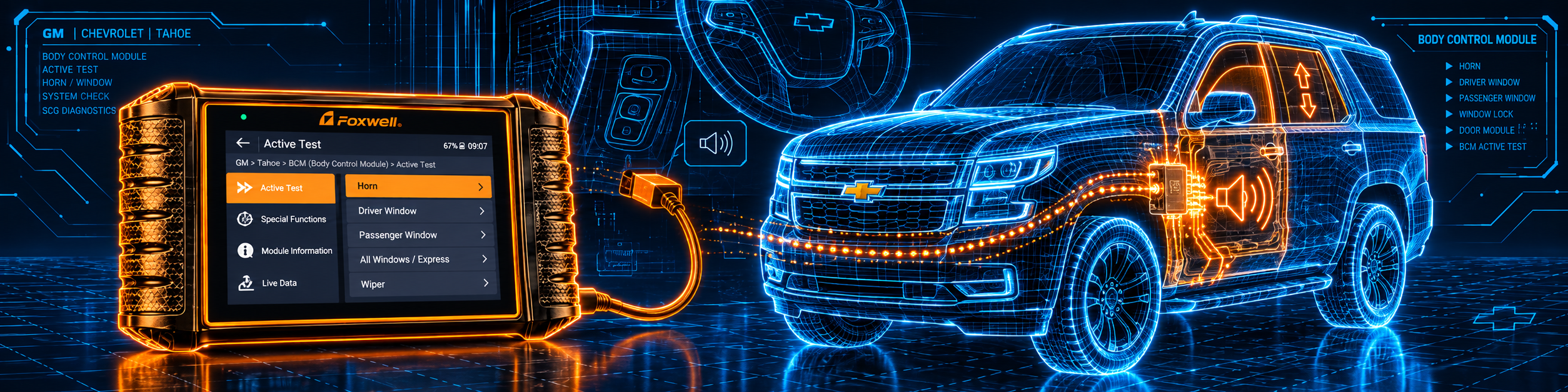
The NT710 for GM sits in between. It is a dedicated tablet for GM brands with active tests and resets. For a shop that sees mostly GM cars, one tablet with a diagnostic cable keeps the work simple. The picture below shows an active test on the body control module of a Chevrolet. The tool sends the command, and the technician listens and watches the part and the live data.
Who This Scanner Actually Fits
The NT710 for GM fits a driver, home mechanic or small shop that works on Buick, Chevrolet, GMC or Cadillac cars and wants active tests, a long reset list and full-system diagnosis. It also fits someone who wants a tablet and no monthly cost, since Amazon and Foxwell both say updates are free for life.
Important Limitations of the Foxwell NT710 for GM
- It is a GM listing. Do not expect other brands. Foxwell’s documents cover the general NT710.
- No GM page from Foxwell. The blog and manual describe the general NT710, so we read them across.
- ECU coding is not counted. Amazon does not list it, and Foxwell’s documents differ.
- Cable connection only. Foxwell says Bluetooth VCI wireless diagnostics are not supported.
- Functions depend on the car. The manual says options vary by year, model and make.
- Small tablet. The 5.5 inch screen is smaller than a 10 inch shop tablet.
Who Should Choose It, and What to Consider Instead
Choose the NT710 for GM if you work on Buick, Chevrolet, GMC or Cadillac cars and want bidirectional control with resets and crankshaft relearn.
Consider the Foxwell NT809BT instead if you work on several brands. Consider the Thinkcar THINKDIAG instead if ECU coding is what you need.
| Specification | Details |
|---|---|
| Screen | 5.5 inch touch, 1280 by 720 |
| System | Android 9 |
| Processor and memory | Quad-core 1.3 GHz, 1 GB RAM, 32 GB storage, per the manual |
| Battery | 4000 mAh, about five hours of continuous work, per the manual |
| Connection to the car | Diagnostic cable to the OBD2 port |
| Vehicles | Buick, Chevrolet, GMC, Cadillac, per Amazon |
| Bidirectional control | Yes |
| Resets | All resets per Amazon; more than 30 special functions per Foxwell’s blog |
| Live data | Up to 4 graphs, merge graph, record and playback |
| ECU coding | Not listed on Amazon |
| Updates | Lifetime free, no subscription, per Amazon and Foxwell |
| Warranty | One year, per the manual |
| Pros | Cons |
|---|---|
| Bidirectional control listed by Amazon | Covers GM brands only on this listing |
| Crankshaft relearn and many resets | No ECU coding listed |
| Full-system diagnosis with live data graphs | |
| Lifetime free updates with no subscription | |
| Quick Scan, history and data playback | |
| Remote support through TeamViewer or AnyDesk |
Methodology: How SCG Evaluates OBD2 Scanners.
Our Verdict on the Foxwell NT710 for GM
The NT710 for GM is a tablet for GM cars with active tests, resets and crankshaft relearn. Amazon and Foxwell agree on the main points, and we do not count ECU coding. For a shop or driver that works mostly on Buick, Chevrolet, GMC and Cadillac, it fits well.
Frequently Asked Questions
Is this the same as Foxwell’s general NT710?
No. This Amazon listing is for the GM version. Foxwell’s blog and manual describe the general NT710 for more than 50 brands, so use them as a guide only.
Does it support ECU coding?
Amazon’s title and bullets do not list it. Foxwell’s blog says the general NT710 does not support programming and coding, and the manual mentions coding features. We do not count it.
Does it do a crankshaft relearn?
The Amazon title names crankshaft relearn. A CARDONE bulletin explains that GM cars need it after the module is reprogrammed or the crankshaft sensor or module is replaced.
Does it need a subscription?
No. Amazon says there are no hidden fees or subscriptions, and Foxwell’s blog says there is no annual subscription fee.
Does it work wirelessly with the car?
No. Foxwell’s blog says Bluetooth VCI wireless diagnostics are not supported. The tool uses a diagnostic cable.
How do I update it?
Open Update on the home screen, sign in with your Foxwell ID, tick the software and press Update.
Is it compatible with my specific vehicle?
This listing is for GM brands. Use the Scanner Finder to check your year, make and model.
Trusted Sources
- Verified Amazon listing: current title, bullets and product overview for the GM listing
- Foxwell NT710 official blog post: functions, brands, limits and updates for the general NT710
- Foxwell NT710 user manual V1.1: setup, update, menus, specifications, warranty
- CARDONE ProTech bulletin, GM Crankshaft Variation Relearn: when the relearn is needed and the steps