Knowledge Hub
Why Won’t My OBD2 Scanner Connect to My Car? Troubleshooting Guide

Your OBD2 scanner is plugged in.
But it says: No Communication. Linking Error. Unable to Connect.
Or your Bluetooth adapter connects to your phone but not to the car.
Do not assume the scanner is broken.
A diagnostic connection has several links: vehicle power → scanner → phone/app → vehicle state → OBD communication → vehicle/module coverage.
The fastest way to solve the problem is to find which link failed.
First: What Exactly Is Not Connecting?
Before changing settings, identify the failure.
Problem A: The scanner does not power on. Start with the vehicle’s diagnostic connector/power path and the scanner/cable.
Problem B: A Bluetooth/Wi-Fi scanner does not connect to your phone. Start with the adapter, phone and app connection.
Problem C: The phone connects to the adapter, but the adapter cannot connect to the vehicle. Now investigate vehicle state, OBD protocol, compliance and vehicle communication.
Problem D: Generic engine diagnostics work, but ABS/SRS/another module does not. That is often a different problem: enhanced diagnostic coverage or a module-specific communication issue.
Do not troubleshoot all four problems the same way. If you are simply unsure how normal scanner setup works, first read How to Use an OBD2 Scanner: Step-by-Step Guide.
Step 1: Does the Scanner Power Up?
Plug the scanner or adapter fully into the diagnostic connector. Look for a power LED, display startup, adapter status lights, or another clear sign of power.
If there is no power: remove and reseat the connector; inspect the scanner plug and visible connector area for obvious damage; verify you are using the correct diagnostic port; check the scanner/cable according to its manufacturer’s instructions.
A vehicle-side power problem is possible. Depending on the vehicle, the diagnostic connector’s power supply may share protection with another circuit. But do not replace random fuses because an internet post says “OBD fuse.” Use the vehicle’s correct wiring/fuse information.
If electrical diagnosis requires probing connector terminals and you do not know the circuit or safe procedure, stop and use qualified service information or a technician.
Step 2: Put the Vehicle in the Correct State
A scanner cannot communicate reliably if the vehicle’s control systems are asleep or the ignition state is wrong.
Follow the scanner manufacturer’s instructions. For many diagnostic procedures, this means at least ignition ON, and some scanner/app workflows recommend engine running.
That does not mean every diagnostic procedure should always be performed with the engine running. Some tests specifically require key-on/engine-off or another condition.
The rule is: use the state required by the scanner and the diagnostic procedure. Never run an engine in an enclosed garage.
Step 3: If It Is Wireless, Separate Phone Connection From Car Connection
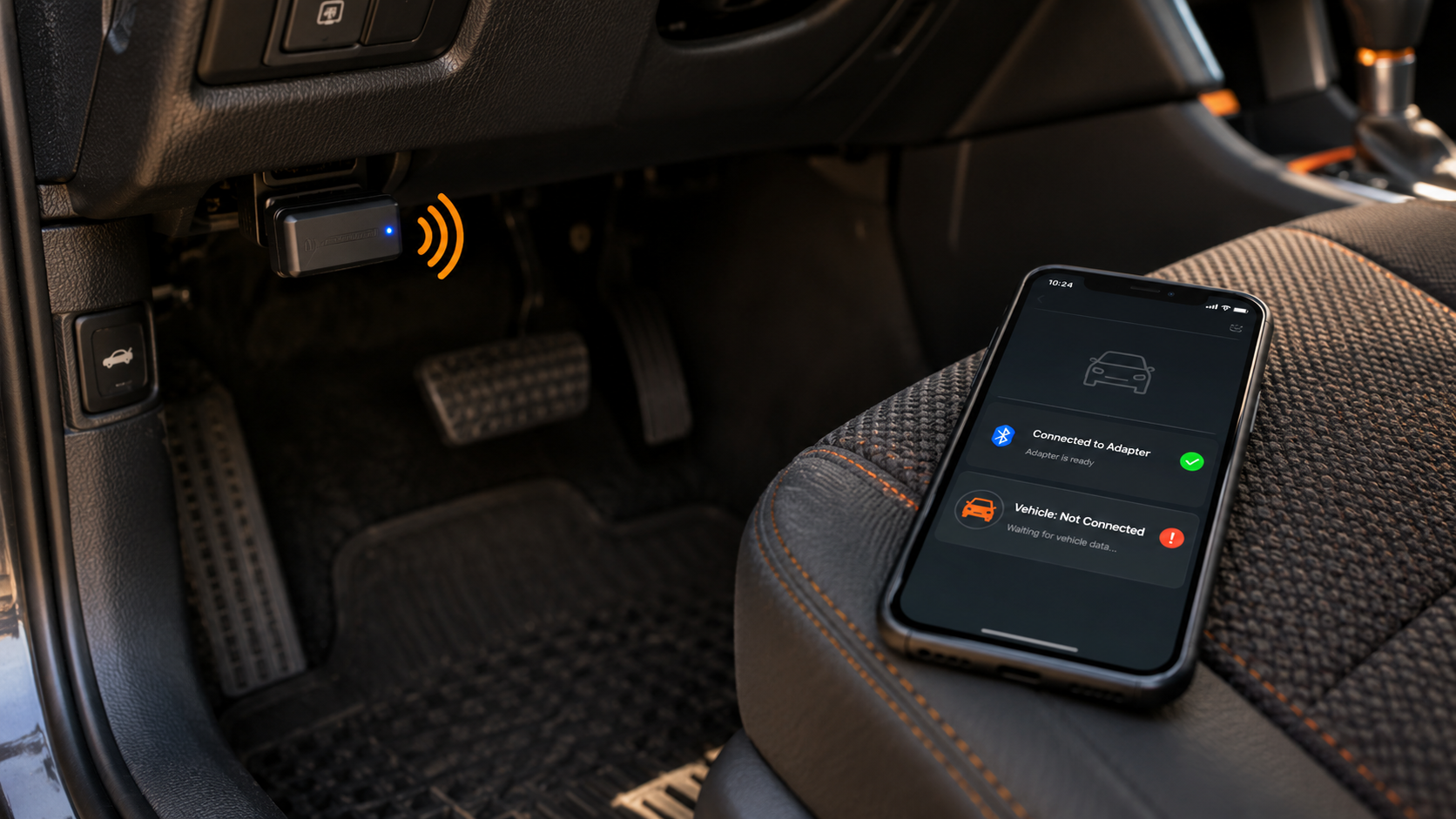
This distinction saves a lot of wasted troubleshooting.
A Bluetooth scanner has two different connections: phone → adapter, and adapter → vehicle.
Your phone can successfully connect to the adapter while the adapter still cannot communicate with the vehicle. Or the vehicle side may be fine while the phone never establishes the adapter connection.
Ask: does the phone see/connect to the adapter? If no, troubleshoot Bluetooth/Wi-Fi/app setup. Does the app see the adapter but report that it cannot connect to the vehicle? Then Bluetooth may already be working. Move to vehicle communication.
Step 4: Troubleshoot the Bluetooth/App Side
For a wireless adapter, try the manufacturer-approved basics: unplug and reconnect the adapter; close and reopen the app; turn Bluetooth off and back on; reconnect/re-pair according to the device instructions; make sure the correct adapter is selected; verify required app permissions; update the app/firmware where the manufacturer requires it.
One easy-to-miss issue: another OBD app may already be using the adapter. Many Bluetooth OBD adapters can connect to only one OBD app at a time. So if you have multiple diagnostic apps open, close the others, reconnect, and retry with only the intended app.
For the architecture differences between wireless and self-contained tools, see Bluetooth vs Standalone OBD2 Scanners.
Step 5: Use Automatic Protocol Detection Unless You Have a Reason Not To
OBD2 vehicles have used multiple communication protocols across generations. Most consumer scanners/apps are designed to detect the appropriate supported protocol automatically.
If someone previously forced the app to use a specific protocol, it may fail on another vehicle. Many adapters’ troubleshooting guidance recommends setting the OBD-II protocol option to Automatic and disabling any option to start with the last connected protocol during connection troubleshooting.
So unless your scanner’s official instructions say otherwise: return protocol selection to automatic before experimenting with manual settings. Do not randomly cycle advanced communication settings if you do not know what they control.
Step 6: Is the Vehicle Actually OBD-II Compatible?
For SCG’s primary U.S. audience, 1996 is the key baseline for passenger cars/light trucks subject to U.S. OBD-II requirements.
But do not reduce global compatibility to “it has a 16-pin connector, therefore generic OBD2 must work.” Markets and vehicle categories differ. A physically similar connector does not by itself prove the exact diagnostic standard, vehicle coverage or scanner support.
For the complete pre-purchase explanation, read Will Any OBD2 Scanner Work With My Car? OBD2 Compatibility Explained.
Step 7: Distinguish Generic OBD Failure From Enhanced Module Failure
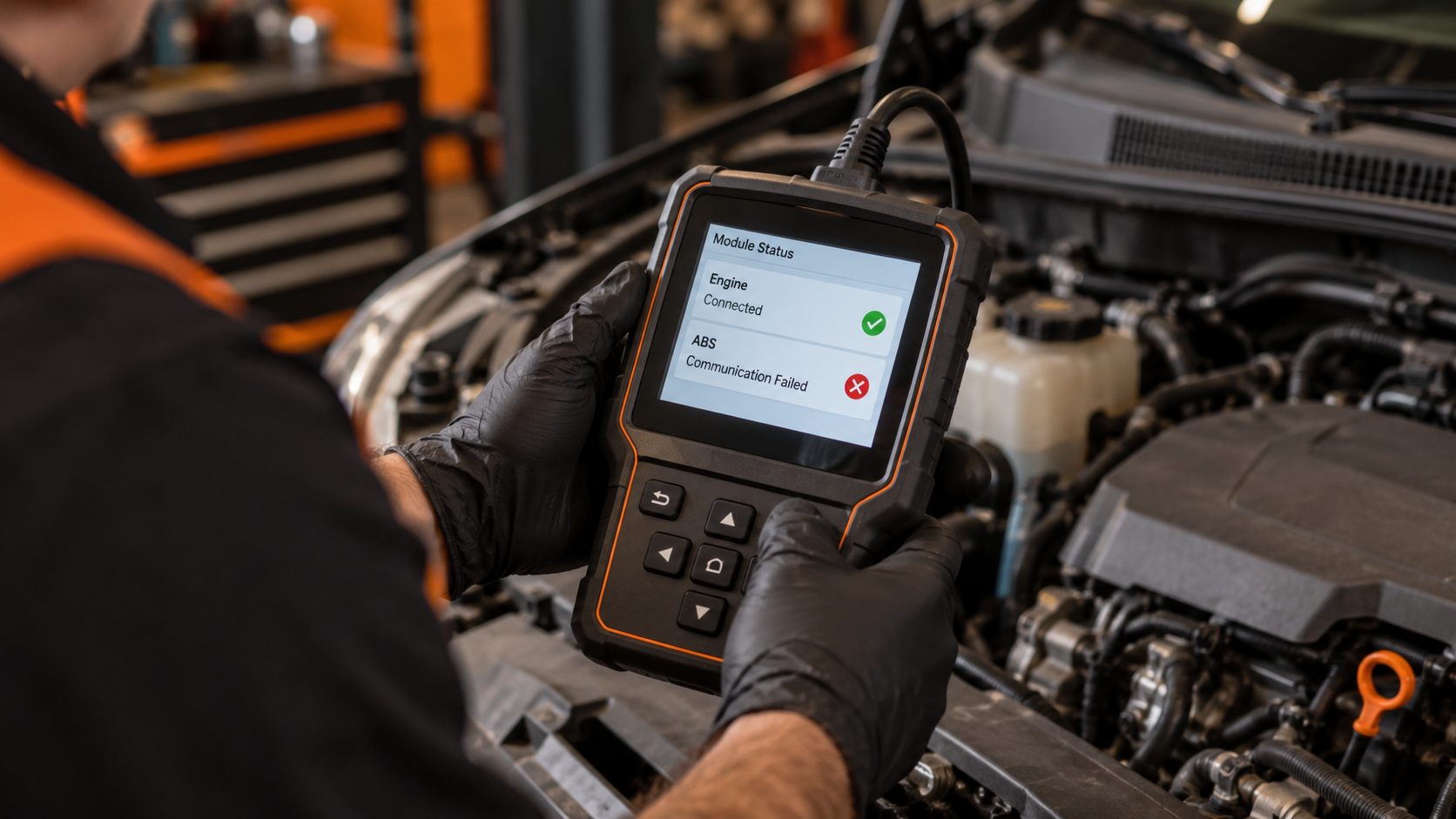
This is one of the most important tests.
Ask: can the scanner communicate through generic OBD2? If yes, but it cannot communicate with ABS, SRS/airbag, body control, electronic parking brake or another specific module, the diagnostic port and basic vehicle communication may already be functioning.
The problem may instead involve scanner coverage, selected vehicle software, selected network, module-specific communication, or the module/vehicle itself.
Enhanced diagnostics generally means access to modules and parameters beyond the standardized OBD-II layer. For the full distinction, read What Does Full-System Diagnostics Mean on a Scan Tool?
Step 8: Does Every Module Fail, or Only One?
This distinction is explicit in many manufacturers’ own troubleshooting guidance.
If all modules fail, investigate common elements first: scanner/VCI, main cable, diagnostic connector, vehicle communication, and scanner-to-vehicle connection. A failure common to everything is less likely to be caused by one isolated module.
If only one module fails, now investigate whether that module is actually supported, whether the scanner is using the correct vehicle/network selection, related vehicle faults, module power/communication, and the module itself.
Do not replace a scanner simply because one module will not answer while every other module communicates normally.
Step 9: Check Exact Scanner Coverage
A scanner can work perfectly and still not support the exact diagnostic function you want.
Examples: generic engine OBD works; ABS access is unsupported; a service function is unsupported on that model year; enhanced data is unavailable for that vehicle; a specific network/module is outside the tool’s coverage.
That is a coverage problem, not necessarily a connection failure. The right question is: does this exact scanner support this exact vehicle, module and function? Use Will Any OBD2 Scanner Work With My Car? OBD2 Compatibility Explained for the coverage process.
Step 10: Check the Cable or VCI
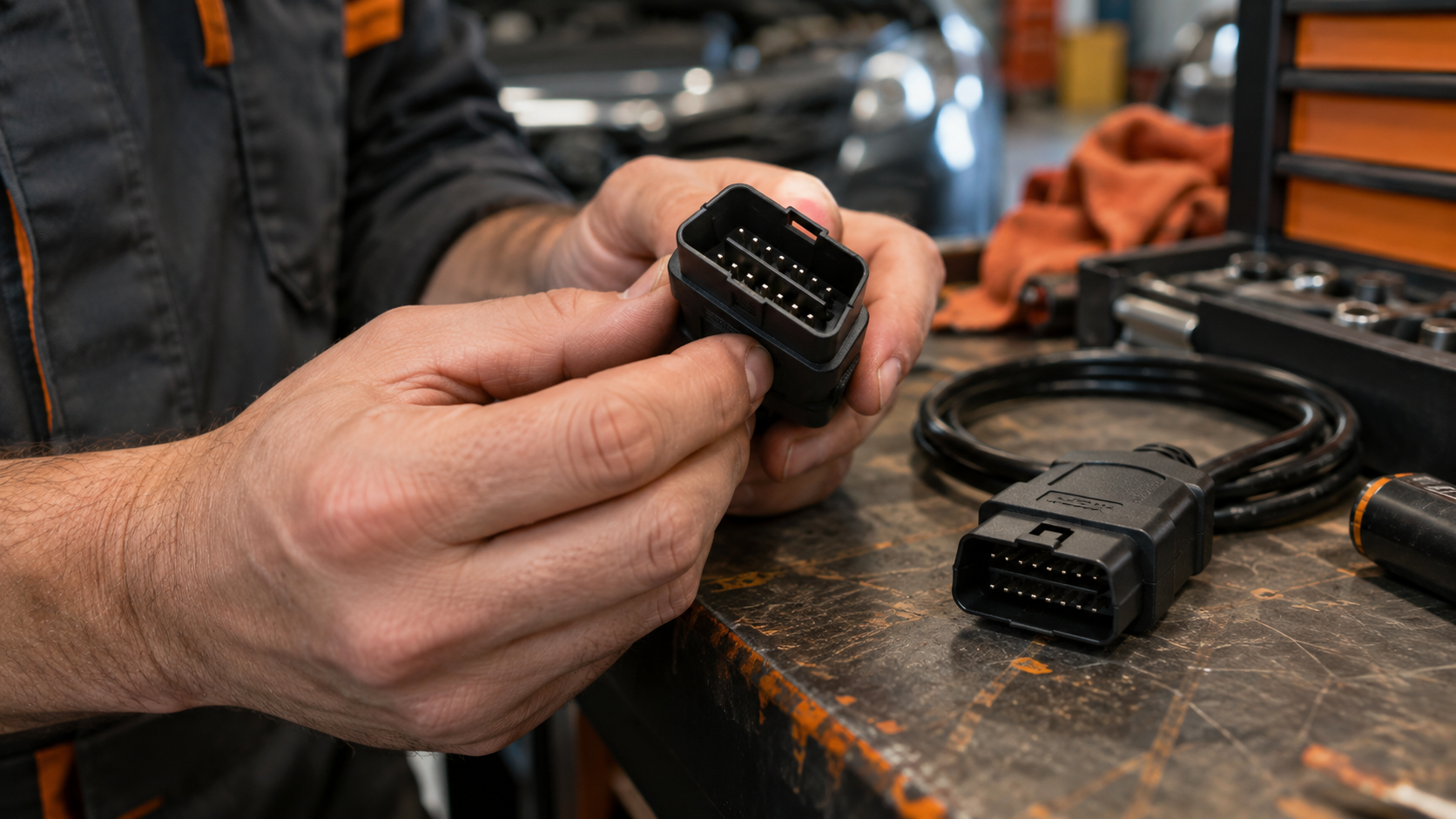
For wired/professional tools, inspect cable seating, connector condition, VCI connection/status, and obvious physical damage.
Manufacturer support guidance for all-module communication failure commonly includes checking the OBDII cable and trying another cable where appropriate.
Do not buy a replacement ECU because a damaged diagnostic cable prevented communication.
Step 11: Try the Scanner on Another Known-Compatible Vehicle
This is a powerful isolation test.
Suppose scanner + Vehicle A = no communication. Then you test the same scanner + a known-compatible Vehicle B, and it works normally. That shifts suspicion toward Vehicle A, its compatibility, connector/network or setup.
If the same scanner fails on multiple known-compatible vehicles, the scanner/cable/adapter/software becomes more suspicious.
This is not absolute proof, but it is excellent fault isolation, and it is exactly the kind of cross-check manufacturers themselves recommend as part of linking-error troubleshooting.
Step 12: Try a Known-Good Scanner on the Problem Vehicle
If available, reverse the test. A known-good scanner on the problem vehicle can help separate scanner-side failure from vehicle-side failure.
If two appropriate scanners both fail to establish basic communication with the same vehicle, vehicle-side investigation becomes more important.
Do not use this test with an obviously incompatible scanner and call the vehicle faulty. The comparison tool must be appropriate for the vehicle and diagnostic task.
Step 13: Do Not Ignore Low Voltage or Vehicle Electrical Problems
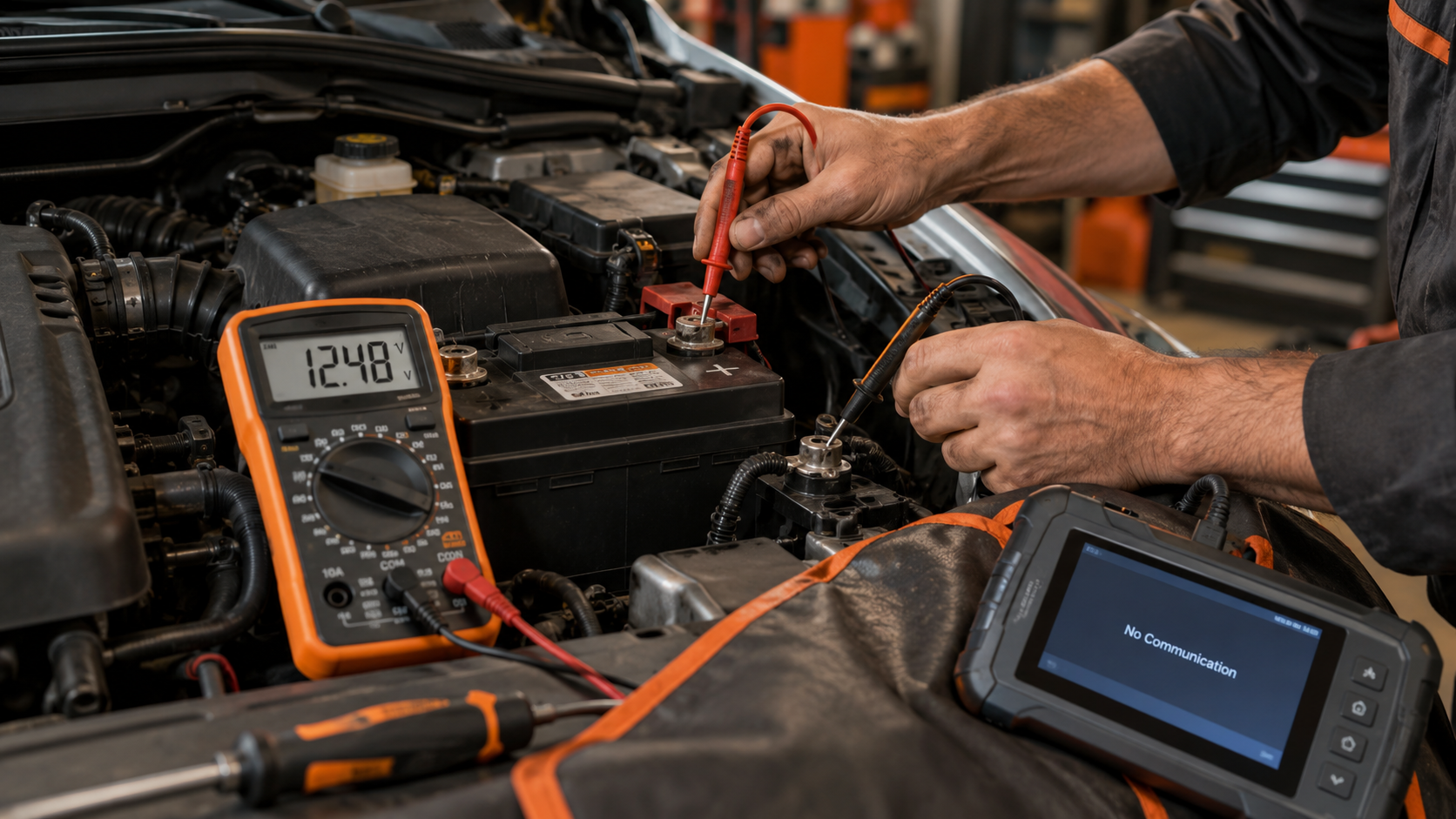
Diagnostic communication depends on functioning vehicle electronics. A weak battery, unstable system voltage or broader electrical/network fault can complicate communication.
If the vehicle shows signs such as slow cranking, repeated module resets, flickering electronics, multiple communication faults, or obvious low-voltage symptoms, address the electrical condition appropriately.
Do not perform programming/coding procedures with unstable vehicle voltage. And do not infer “bad battery” from a connection error alone. Measure and diagnose rather than guess.
Step 14: What If the Scanner Powers Up but Says “No Communication”?
This narrows the problem. Power at the scanner tells you only that at least part of the power path is working. It does not prove that communication lines are healthy, the vehicle is in the correct state, the protocol is correct, the scanner supports the vehicle, or the ECU/module is responding.
Continue through vehicle state, protocol, generic OBD, exact coverage, all-modules vs one-module, and cross-test with another vehicle/scanner.
Step 15: What If the Scanner Connects to the Engine but Not ABS or Airbag?
Do not call this “OBD port failure” yet. If generic engine communication works, the connector and at least one diagnostic path are already communicating.
Possible reasons include the scanner lacking enhanced coverage, wrong vehicle/network selection, an unsupported module, a module-specific communication problem, or a vehicle-side module fault.
Read What Does Full-System Diagnostics Mean on a Scan Tool? before deciding that you need another scanner.
Step 16: What If the Scanner Worked Yesterday?
Ask what changed. Possible variables include ignition/vehicle state, app selection, another app holding Bluetooth, adapter pairing, protocol setting, cable seating, software/firmware, vehicle battery condition, and vehicle/network fault.
Do not immediately reset every setting. Start with the simplest change and preserve useful diagnostic information.
Quick Troubleshooting Decision Tree
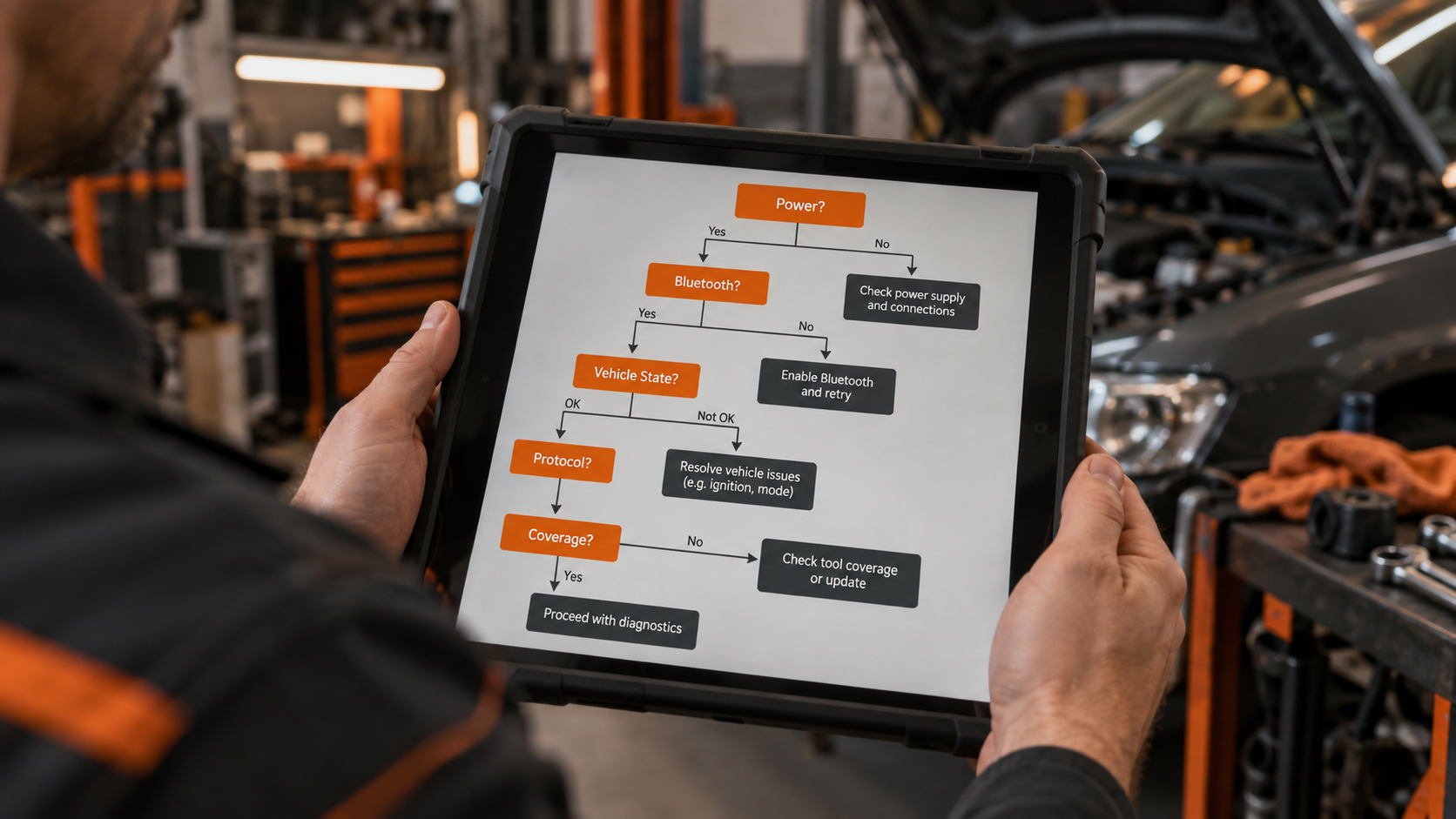
Scanner has no power → reseat connector → inspect scanner/cable/visible DLC condition → verify correct vehicle circuit information → diagnose vehicle-side power safely if needed.
Wireless adapter not connecting to phone → close other OBD apps → power-cycle Bluetooth → reconnect/re-pair per manufacturer instructions → check app/permissions/firmware.
Phone connects to adapter, but not vehicle → correct ignition/engine state → protocol = Automatic where appropriate → verify OBD-II compatibility → try generic OBD2 → check exact vehicle coverage.
Generic OBD works, one module does not → check enhanced coverage → correct vehicle/network selection → investigate module-specific communication.
Nothing communicates → check cable/VCI/common connection → try known-compatible second vehicle → try known-good scanner on problem vehicle → investigate vehicle-side communication/electrical issue if indicated.
Common Mistakes
Mistake 1: Assuming “Bluetooth connected” means “car connected.” Those are separate links.
Mistake 2: Buying a new scanner before checking exact coverage. Unsupported function does not equal broken scanner.
Mistake 3: Replacing random fuses. Use the correct vehicle circuit information.
Mistake 4: Manually forcing random protocols. Automatic detection is normally the safer troubleshooting baseline unless official instructions say otherwise.
Mistake 5: Calling the OBD port bad because ABS will not connect. Generic OBD may still be communicating normally.
Mistake 6: Assuming one failed module means the entire scanner failed. Separate one-module failure from all-module failure.
Mistake 7: Assuming every 16-pin connector guarantees the same diagnostic support. Physical connector shape, regulatory compatibility and scanner coverage are different questions.
FAQ
Why does my OBD2 scanner have power but not connect?
Power only proves that the scanner is receiving power. Communication can still fail because of vehicle state, protocol, compatibility, cable/network problems or scanner coverage.
Why does my Bluetooth OBD2 scanner connect to my phone but not my car?
The phone-to-adapter link and adapter-to-vehicle link are separate. If Bluetooth works, troubleshoot vehicle state, OBD communication, protocol and compatibility next.
Should the engine be running when connecting an OBD2 scanner?
Follow the scanner/procedure instructions. Many tools require ignition on, and some current app workflows recommend starting the engine for connection. Other diagnostic tests specifically require engine-off conditions.
Can a blown fuse stop an OBD2 scanner from connecting?
A vehicle circuit fault can prevent power/communication, and some vehicles may share diagnostic-connector power protection with other circuits. Verify the exact vehicle wiring/fuse information rather than replacing random fuses.
Why does my scanner read engine codes but not ABS?
Generic OBD and enhanced ABS diagnostics are different levels of access. Your scanner may lack exact ABS coverage, or there may be a module-specific communication problem.
Why does my scanner say “Linking Error”?
It means communication was not established. Check vehicle compatibility/state, scanner/cable connection, protocol and whether the problem occurs on another known-compatible vehicle.
Can another OBD app cause connection problems?
Yes, for some wireless adapters: many can connect to only one OBD app at a time.
Should I manually select an OBD2 protocol?
Normally use automatic protocol detection unless the scanner manufacturer’s instructions or a specific diagnostic procedure gives you a reason to choose manually.
How can I tell whether the scanner or the car is the problem?
Cross-testing is useful: try the scanner on another known-compatible vehicle and, if possible, a known-good appropriate scanner on the problem vehicle.
Does “no communication” mean the ECU is bad?
No. Many simpler causes must be ruled out first, including setup, cable/adapter, protocol, coverage and vehicle communication/power issues.
The Bottom Line
When an OBD2 scanner will not connect, do not start by guessing which part is broken.
Find the failed link: power → scanner → phone/app → vehicle state → protocol → generic OBD → enhanced coverage.
Then use two powerful questions: does generic OBD communicate? And do all modules fail, or only one?
If necessary, cross-test: same scanner on another known-compatible vehicle, and a known-good scanner on the problem vehicle. That turns “my scanner won’t connect” from one vague problem into a series of testable questions.
If you need normal setup instructions, continue to How to Use an OBD2 Scanner: Step-by-Step Guide.
If generic OBD works but the system you need does not, read What Does Full-System Diagnostics Mean on a Scan Tool?
If the issue is that your scanner simply does not support the required vehicle/module/function, continue to Will Any OBD2 Scanner Work With My Car? OBD2 Compatibility Explained before considering a replacement.
If you are choosing a Bluetooth scanner, compare the Best Bluetooth OBD2 Scanners.